Work with titles and media
This guide describes the Vault view in the Desktop App — how to navigate, find titles and tagged media, and manage your library on Cloud storage. Uploads and downloads of large packages use ASC through the app.
Note: The Vault view is not available on BYOS workspaces.
A breakdown of the Vault
After sign-in you land in the Vault, with titles in a grid:
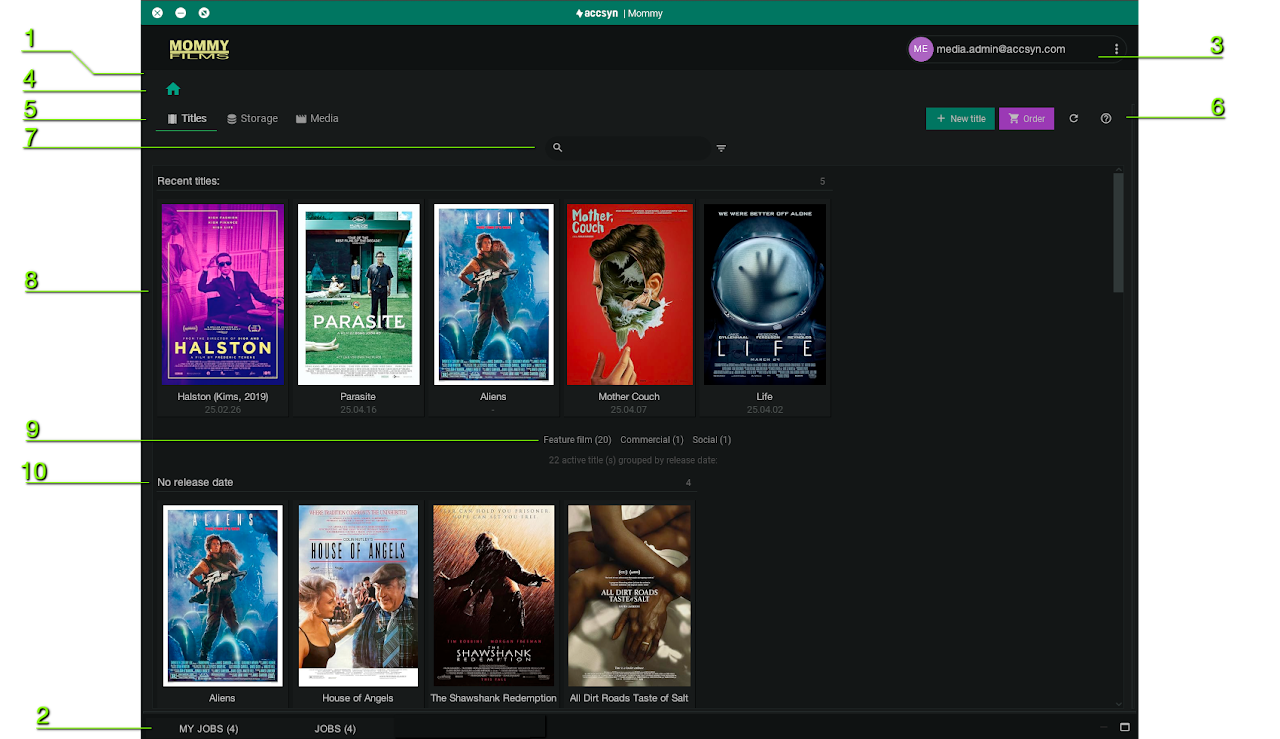
Breakdown of the Media Vault UI.
1 — Vault view
Main title/media area. If the monitor panel is maximised, restore the Vault with the VAULT button at the top.
2 — Monitor panel
Bottom jobs panel — file transfers and proxy/transcode queue.
3 — Account button
Shows the signed-in user (email). Opens settings, switch user, check for updates, and quit.
4 — Breadcrumb
Top left: home and path within the Vault (usually starting at the selected title).
5 — Main navigation
- Titles — Browse and search titles and projects.
- Storage — Browse accsyn Cloud storage.
- Media — Browse and search all Vault media.
Title browser
6 — Titles toolbar
- NEW TITLE — Create a title/project; see Create title.
- Order — Place a Media Lab order; see Media Lab.
- Reload titles.
- Help — opens this documentation.
7 — Search and filter / display
Enter text and press Enter to search by title name.
The filter button (right of search) lets you:
- Filter by title type
- Group titles by an attribute
- Set cover image size
8 — Recent titles
The five most recently viewed titles.
9 — Type filter buttons
Filter the listing by type.
10 — Title listing
Titles matching type, search, and grouping. Click a title to open it; use + to create a title.
Edit a title by clicking its name when the pen icon appears on hover.
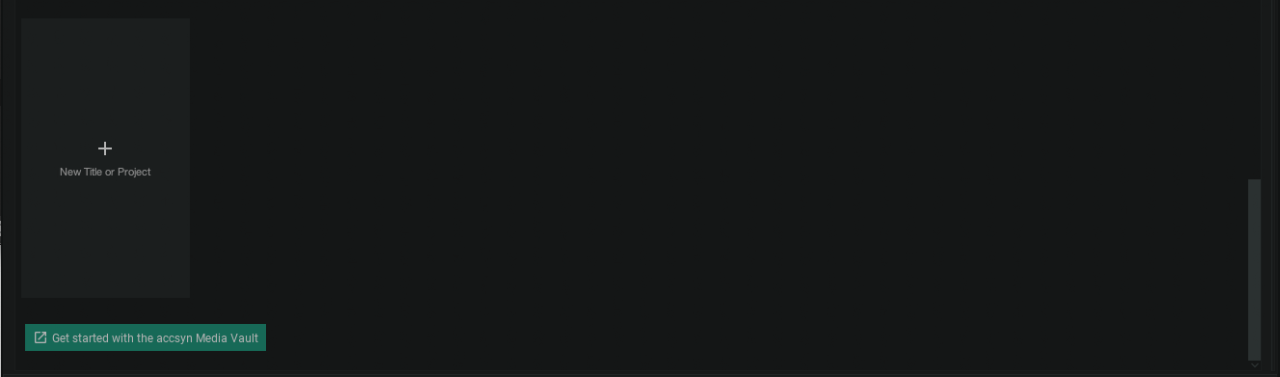
New title placeholder
At the bottom of the listing, click the placeholder to create a title/project:
Title view — files
Default title view: banner plus file browser.
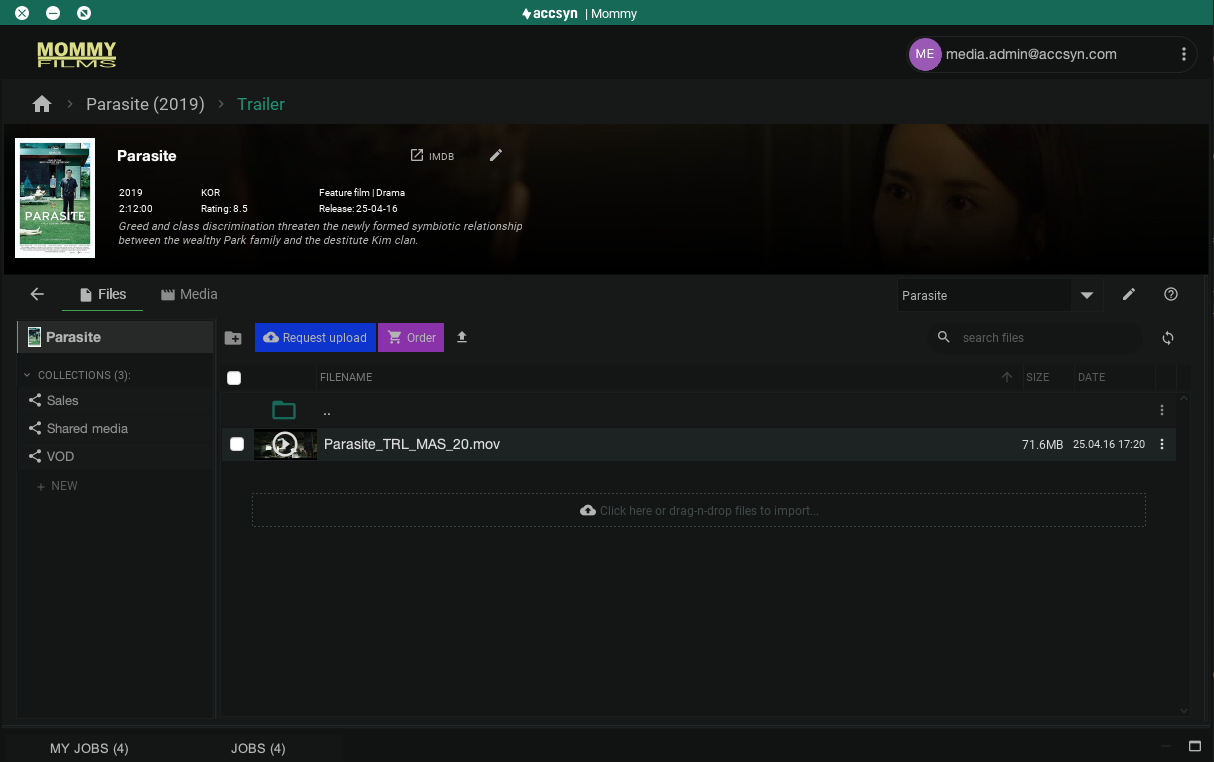
Example: title Files view.
Title banner
Shows title and media summary.
- IMDb — open the title on IMDb.
- Pencil — edit or remove the title.
Note: A default banner background is shown until you set a custom banner in Edit title.
Toolbar
- Back — Clear selection and return to the titles view.
- Files — File browser mode.
- Media — Media browser mode (see below).
- Title selector — Switch title.
- Edit title — Edit or remove.
- Help — This guide in the browser.
The file browser has a share browser on the left and a file list on the right.
Share browser
Browse the title (default), or a shared folder / collection beneath it. See Storage for ACL sharing.
File list
Files in the current title folder.
Toolbar (nothing selected):
- Create folder
- Request upload — send an upload link to this folder
- Order — Media Lab order for this title; see Media Lab
- Upload — upload and ingest media
- Search files
- Reload (the view also refreshes about every 10 seconds)
Folder contents
- Ordinary files: name, size, modification date
- Media: thumbnail — click to open image or play video proxy
- Double-click a folder to enter it
- Sort via column headers
- Right-click empty space for the same actions as the toolbar
File and media actions (when items are selected):

- × — Clear selection
- Rename / Move / Delete (media can also be un-ingested from Media view without deleting the file)
- Deliver — see Deliver media
- Stream — see Stream media
- Process — see Media processor
- Order — see Media Lab
- Download — download to your computer (ASC via Desktop App)
Title view — media
All media ingested under the title:
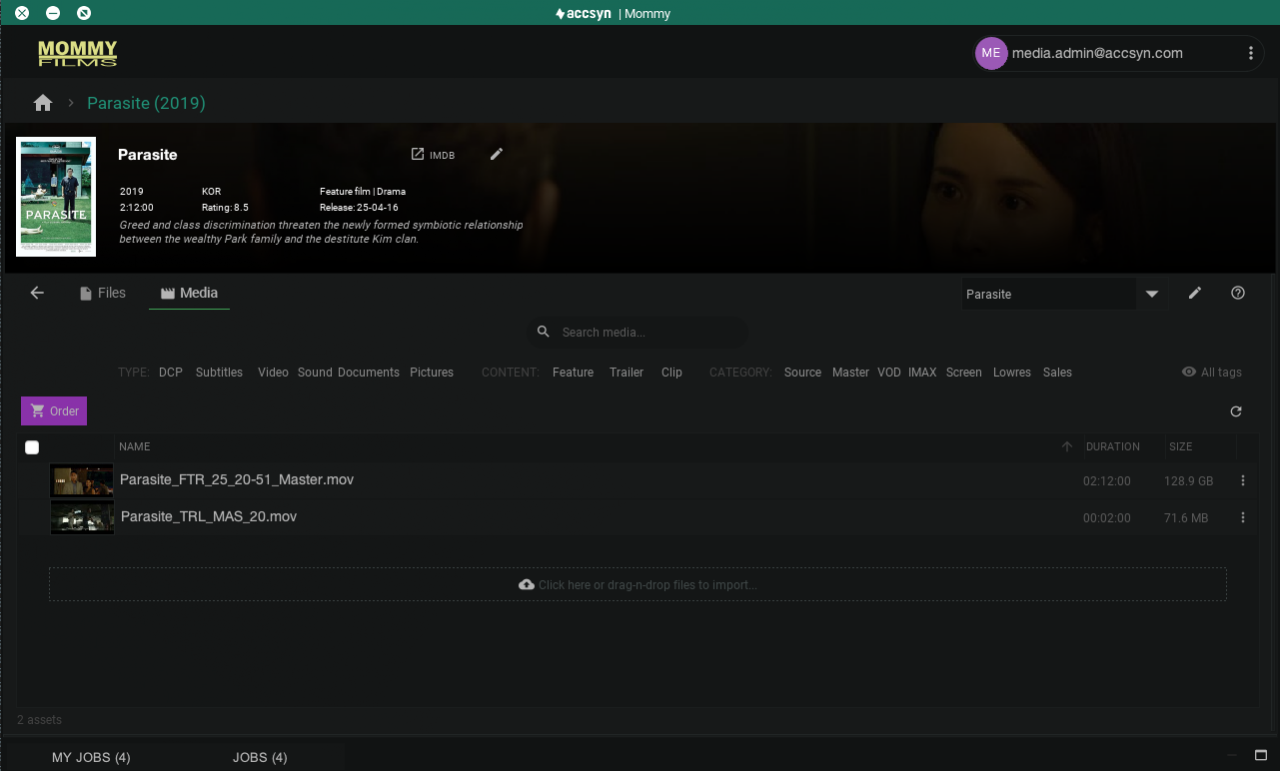
Search media
Enter text and press Enter to search filename and tags within the title.
Tag selectors
Filter by type, content, and category — find deliverables without walking the folder tree.
All tags switches to advanced mode across technical tags on the platform.
Advanced media tag filters
Shown by default for administrators (hidden for employees). Detailed filters from the Vault tagging model:
- Use each menu to pick a tag value
- Clear selection resets filters
- Refresh reloads tags from the central registry
- − hides the advanced panel
Toolbar and action bar
Same behaviour as in Files mode.
Manage title
Click the pencil next to the title selector, or the pencil in the banner.
Attributes save when a field loses focus.
Custom cover image
Click the pencil on the cover and choose a local JPG or PNG (ideal about 175×240). Restore the IMDb cover with the undo icon.
Custom banner image
Click the pencil in the upper-right of the banner and choose a JPG or PNG (ideal about 1800×200 / 9:1). Clear with the remove control next to the edit icon.
Remove a title
Remove all media beneath the title first (select media → right-click → Remove), then remove the title.
Manage media
Rename, move, and delete physical files from the title Files view (or main Cloud Storage).
Media info
Right-click → Info for the metadata panel.
Edit media tags
Right-click → Edit tags. Change values except type and extension (type follows the file extension).
Rename media
Right-click → Rename.
Remove media
Right-click → Remove media to un-ingest. Choose how physical files on storage are handled afterward.
Storage
Browse and manage the whole Cloud volume — folders outside titles for deliveries, file sharing, backup, and so on. Same layout as title Files, with ACL info on the right and folder sharing.
Media (global)
Browse all tagged media across titles — advanced search and library-wide monitoring.
Next: Process / export media from the Vault.
Related articles:
Lab services — help with ingest, deliverables, QC, transcoding, and SVOD/TVOD export.