Manage file sharing
This guide explains how to use accsyn as a file-sharing service — similar in role to an FTP server, but with fine-grained ACLs and transfers over the secure, accelerated ASC protocol.
You can expose specific subfolders of a project tree on production storage to external users and partners without giving them the whole volume. That is the usual pattern for integrating vendors into production safely.
Note: File sharing is managed in the Desktop App today, not fully in the web browser. Browser management may improve in future versions.
Storage view
Preparations
- Download and install the accsyn Desktop App.
- Sign in as an elevated user — an administrator, or an employee with access to at least one volume.
File sharing is driven from the Storage view:
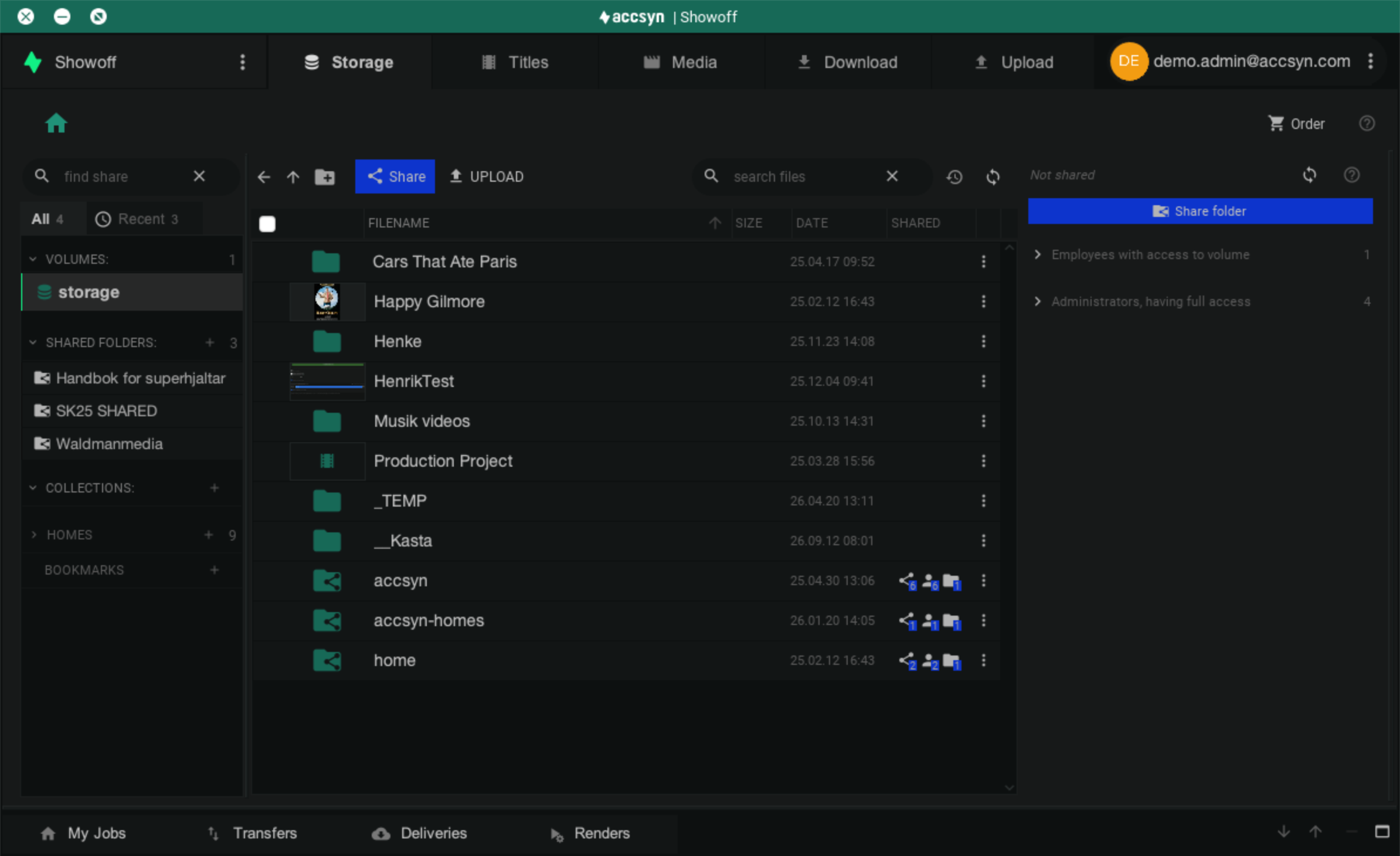
Example screenshot of the Storage view in the Desktop App.
The view has three areas:
Share list
On the left, the share list shows:
- Recent — the five most recently visited shares.
- Volumes — root folders/drives exposed to accsyn. The default cloud volume is often named
storage. BYOS setups may define as many volumes as needed. - Shared folders — folders beneath a volume shared with users.
- Collections — virtual folders of files/folders from one or more volumes.
- Homes — per-user home shares.
Right-click a share for its context menu. Use the eye icon to show or hide share-type sections (homes are hidden by default).
File list
The centre pane lists files and folders for the selected share. It behaves like a normal file browser, with a toolbar and context menu for create, move, rename, and delete.
When you rename, move, or delete content inside accsyn, share paths, ACL paths, and collection references are updated where possible. See Renaming and moving shared content.
Access info
On the right, the access panel shows which users have access to the current share and path.
Sharing a volume with employees
Note: To invite administrators, use INVITE USER in the Desktop App or go to https://accsyn.io/users.
To grant employees access to a volume:
- Select the volume on the left (not while browsing a shared folder, collection, or home).
- In the access panel, click Share and choose Grant employees access, or click the green + under Employees with access to volume. The ACL dialog opens:
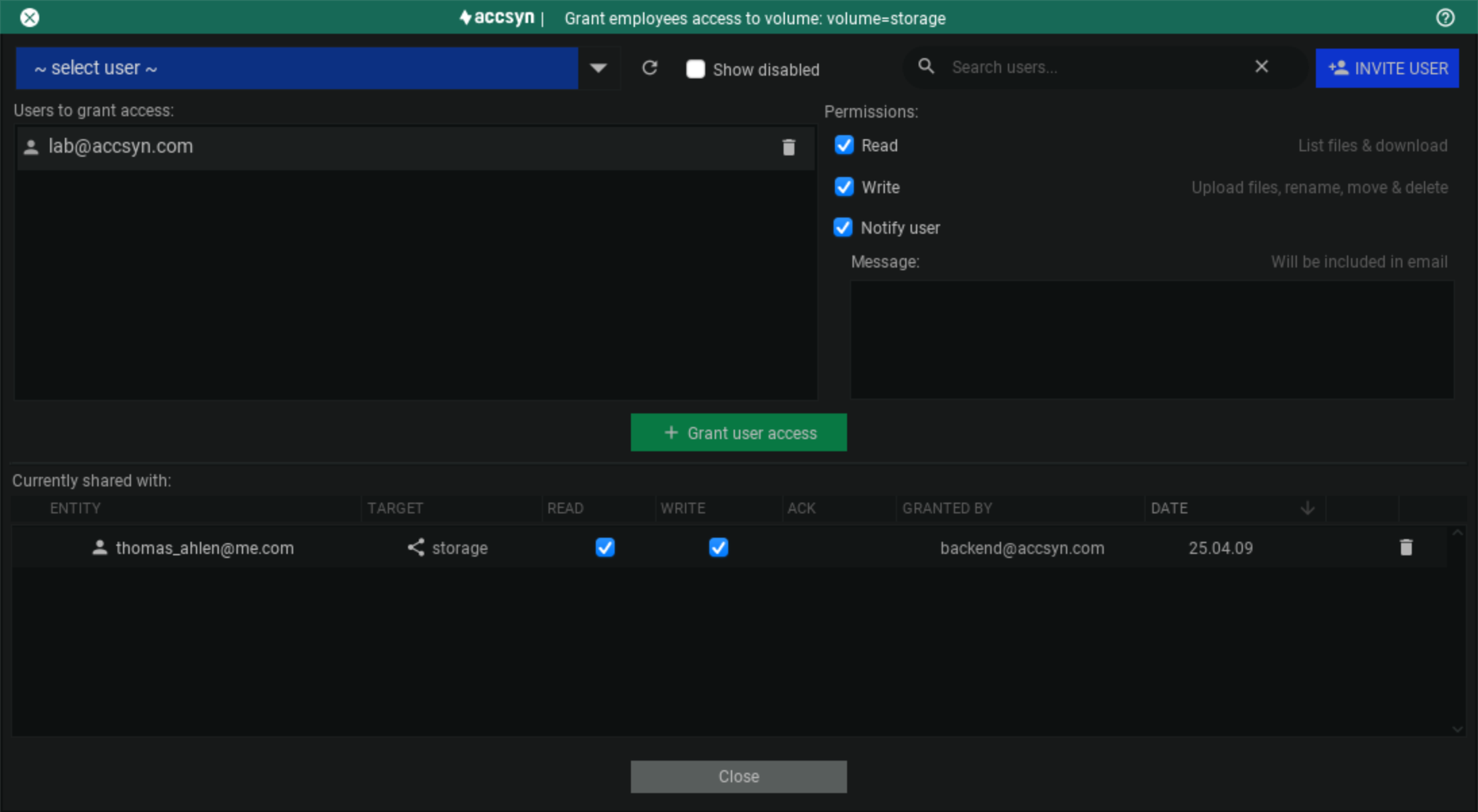
- Enter an email or use the list icon to pick an existing employee. You can invite new employees here.
- Choose permissions: Read (download only) or Write (upload and modify).
- (Optional) Notify employee — enter a message, or clear the option to skip email.
- Click Grant access.
The ACL appears under Currently shared with:. The ACK column shows whether the user has dismissed the in-app notification.
To revoke access, use the trash can on the ACL entry.
Sharing a folder with standard users
Note: accsyn does not share a single file as a bare link. Put the file in a collection instead.
Typical production pattern: create a shared folder on a project path, then grant ACLs on the whole share or only a subfolder (for example a vendor drop zone). Partners see only what you grant; transfers run over ASC.
Create a shared folder
- In Storage view, select the volume and browse to the folder to share.
- Click Share in the toolbar and choose Create shared folder, or use Create shared folder in the access panel.
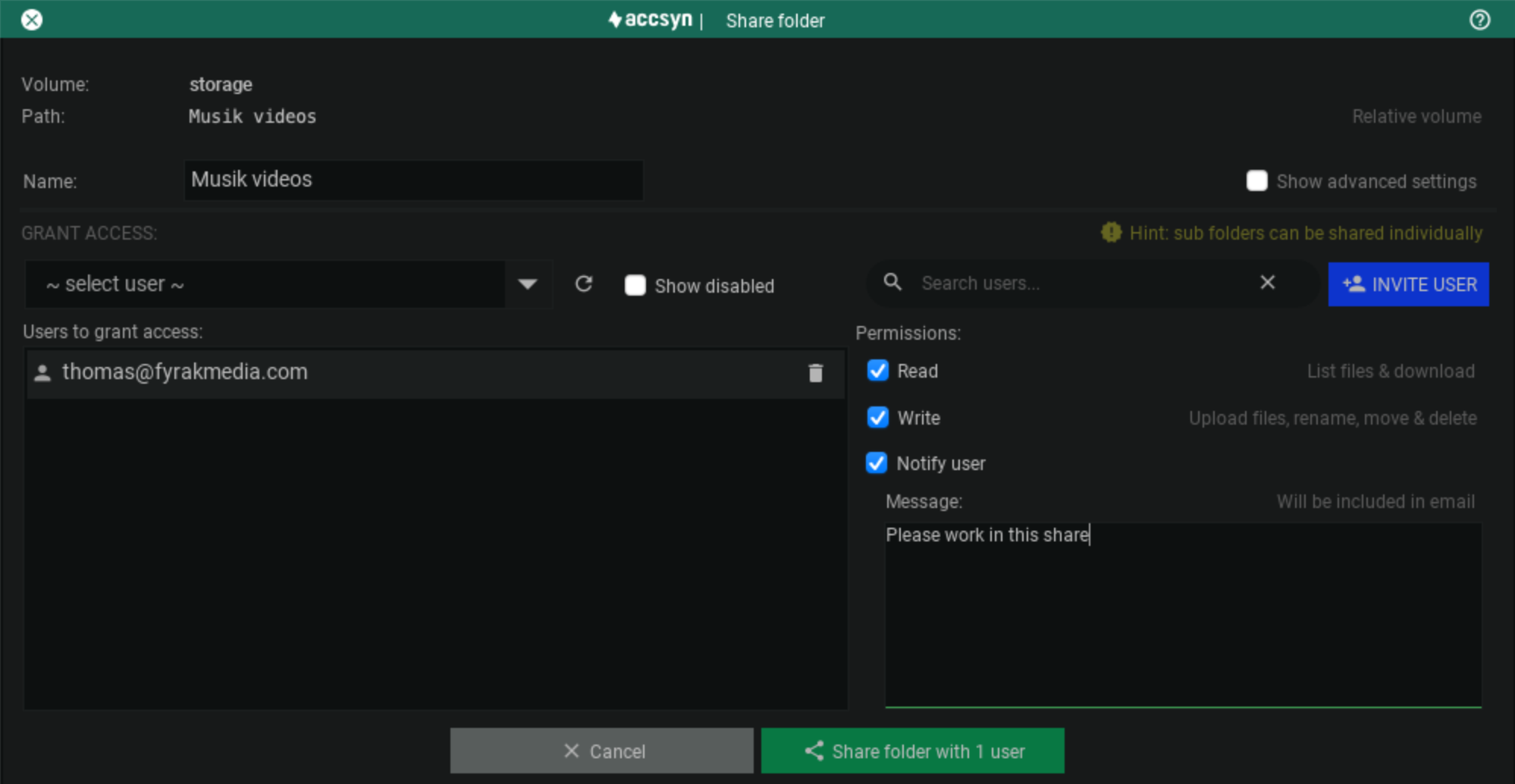
- Give the share a name.
- (Optional) Set the share code — API identifier for automation.
- (Optional) Bind a queue so transfers involving the share use that queue.
- (Optional) Grant user(s) access to the whole shared folder now. You can also grant only a subpath later.
Click Create. If users were granted access, the folder appears as a download and/or upload target for them.
Grant access to a shared folder
- Select the shared folder in the share list.
- Browse to the subfolder to share, or stay at the root to share the entire folder.
- Click Share → Grant user access, or Grant access in the access panel. The ACL dialog opens:
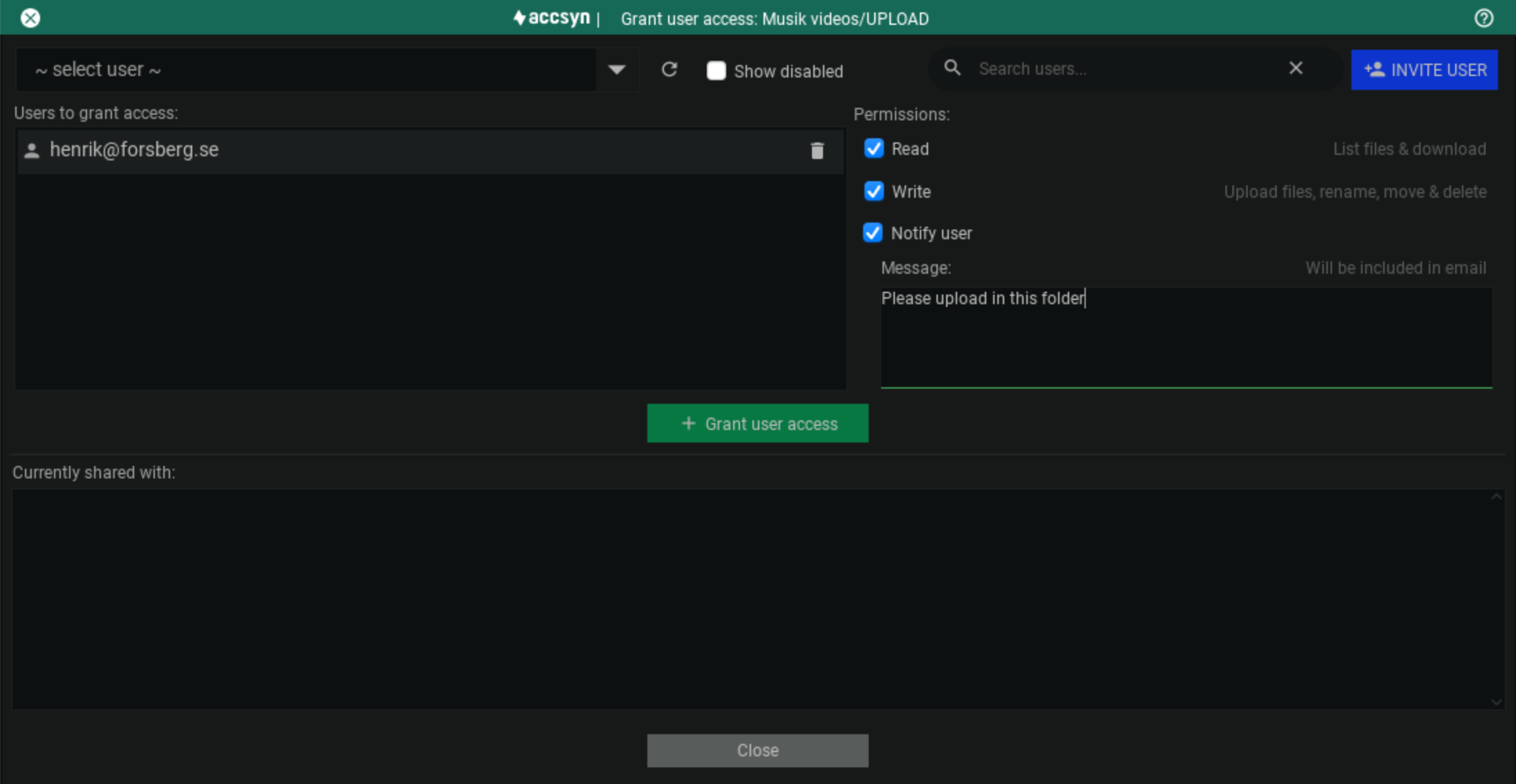
- Enter an email or pick an existing user from the list.
- Choose permissions: Read (list and download) or Write (upload and modify — create directories, rename, move, delete).
- (Optional) Notify user and optionally a custom message.
Click Grant access. The ACL appears under Currently shared with: and in the access panel while you browse.
To revoke access, use the trash can on the ACL entry.
Modify a shared folder
Right-click the share in the share list and choose Edit.
Removing a shared folder
Right-click the shared folder and choose Delete. To keep it for audit, choose Inactivate (archive). Restore inactive shares from the share settings page (https://accsyn.io/admin/storage).
Creating a collection
To create a collection, select the file(s) and/or folder(s) and either:
- Click Share → Create new collection
- Right-click → Share → Create new collection
- Click NEW in the collections section of the share list
Name the collection and click Create.
Add more items with Share → Add to collection → (your collection). Remove items via right-click Remove or the trash can on the entry.
Share a collection with users
Select the collection and Grant access — the same ACL dialog as for folders.
Removing a collection
Right-click → Delete, or Inactivate to archive. Restore from https://accsyn.io/shares.
Accessing a shared folder
Standard users: see Access shared folders.
Administrators and employees: open Download from the top menu, pick files/folders and a local destination. Use Settings for options, or Switch to advanced download mode for an NC-style dual pane. Use Upload the same way, or the Transfer tool for both directions — all powered by ASC when using the Desktop App.
Remove access for a folder or collection
- Select the shared folder or collection.
- In the access panel, click the trash can on the ACL entries to revoke.
- Or open Grant access and remove entries from the ACL list there.
Users are not notified when access is revoked.
Note: If a standard user no longer has access to any shared folder or collection, they cannot sign in to the Desktop App for your workspace.
Create a home
A home share gives a user a personal upload/download area. Accsyn can create homes automatically — see Storage under Workspace → Administrate → Settings.
Create a home from the Desktop App
Click NEW under Homes, or + in the homes section header:
- Choose the user (or invite a new one).
- Click Next.
- (Optional) Add a description.
- Click Create.
The home is created on the default volume under the configured home path. Read/write ACLs are created and a notification email is sent.
Create a home from the browser
- Sign in as an administrator or an employee with write access to the default volume.
- Go to Workspace → Storage and expand the default volume.
- Open the Homes tab.
- Click CREATE HOME.
- Select a user (users who already have a home are omitted).
- Click Create.
Renaming and moving shared content
Shared folders, homes, ACLs, and collection entries store paths relative to storage. When those paths change, accsyn must update its records so access stays correct.
Inside accsyn
When you rename, move, or delete via the Storage file browser (or equivalent accsyn file operations):
- Shared folders and homes — path updates if the folder (or a parent) is renamed or moved. If the folder is deleted, the share is inactivated (related ACLs too).
- ACLs — paths update when their target subfolder is renamed or moved. If a folder moves out of the share, or a folder beneath the share is deleted, those ACLs are removed and the change is logged.
- Collection entries — paths update for renamed/moved items; entries for deleted items are removed.
Prefer changing shared content inside accsyn so references stay consistent.
Outside accsyn
If the same paths change on disk outside accsyn (Finder, Explorer, tools on the storage host), accsyn does not learn about it. Shares, ACLs, and collection entries can become orphaned until you fix them manually.
Note: Deleting a share in accsyn does not delete files on disk. Deleting or moving files outside accsyn does not remove or repair related shares and ACLs.
Modify a share (folder, collection, or home)
Right-click the share → Edit.
Note: If you change the share code, update API workflows that use it.
Removing a share
Right-click → Delete.
Note: Files on storage are not deleted; remove them manually in the file browser if needed.
Manage shares with the Python API
Shared folders, homes, collections, and volume ACLs can be automated with the accsyn Python API. A common pattern is to create a shared folder on a project path, then grant a partner access to a subfolder only.
Example — create a shared folder, then grant read/write on a vendor subpath:
share = session.create("Folder", {
    "parent": "664b6d76e43eb396e5e55419",
    "path": "projects/theproject",
    "name": "Shared project assets",
})

acl = session.grant(
    "User", "61779c54b80099ea066b0604",
    "Folder", share["id"],
    {
        "path": "FROM_VENDORS/acmevfx",
        "read": True,
        "write": True,
        "notify": True,
        "message": "Please upload your files here.",
    },
)
Omit path (or use "/") to grant the entire shared folder. Transfers to and from these shares use ASC when clients run the Desktop App or a User server.
For volumes, collections, revoke/deactivate, and more, see the full File Sharing chapter. API keys and installation: Developer Hub — Python API.
Note: The API is not available for Cloud Essentials or BYOS Lite workspaces.