Monitoring and queue management
This guide explains how to monitor and manage ongoing accsyn jobs — file transfers and render/compute jobs. Transfers run over the secure, accelerated ASC protocol (or HTTPS for web transfers).
Covered elsewhere:
- Monitor deliveries and upload requests
- Monitor web streams
- Render/compute farm monitoring — see Developer Hub and Render farm
Prerequisites
- Signed in at https://accsyn.io/jobs as an elevated user (employee or admin).
- Signed in to the Desktop App as an elevated user. Download the app here.
Job monitoring
My jobs
On the web, your current running job appears in the upper-right activity icon:

It shows progress and ETR. If several jobs are running, the oldest (first submitted) is shown. Click the icon to open a drawer of your active and finished jobs.
In the Desktop App, open MY JOBS in the expandable bottom panel.
Workspace jobs
Jobs are created when:
- Someone uploads or downloads from a delivery, upload request, or web stream
- You use the Desktop App for File Sharing or submit a compute/render job
- You use the API (Python/JS) — see Developer Hub
To monitor all ongoing and finished transfers, open the Jobs page at https://accsyn.io/jobs.
The page lists file transfers and compute jobs, grouped by queue:
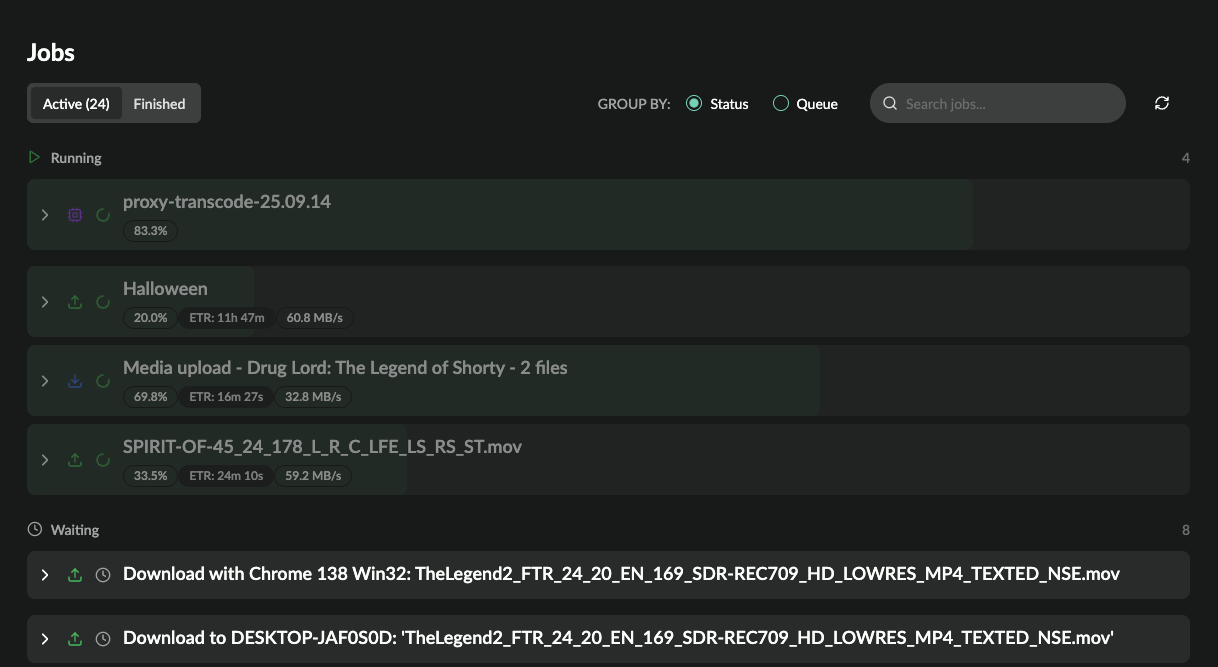
Switch between active and finished (including aborted) jobs, group by queue (default) or status, and search.
Job view
Expand a job for details, including tasks/files.
Toolbar
- Pause, resume, and abort
- View job log — events over the job lifetime
- Queue name and position (in brackets)
- Job size
Task list
A task is a single file or folder in a transfer, or a compute/render unit:
- Select — Select tasks to change status
- Number / URI — Task number or identifier
- Name — Filename
- Size — Size of the file being processed
- Status — Processing status
- Tries — How many times the task has run
- Start — When processing started
- Time — How long the task has processed
- Logs — Detailed task process log
- Description — Optional task description
Footer
- Source → destination
- Created date
- Finished date
- ID (API)
Job and queue management
These operations manage transfers and compute jobs at scale. Accsyn is designed as a central hub for file transfers and long-running background work, so operators can prioritise individual jobs or groups by project need.
Manage job states
In the web browser:
- Pause (active jobs only) — Select the job and choose Pause from the action bar, or open the job and click pause. Execution stops immediately and the job is de-queued.
- Retry / resume — For a paused or failed active job, or a finished/aborted job: select Resume/Retry from the action bar, or click play on the job. The job goes to the bottom of its queue and runs when jobs ahead have finished.
- Abort — Select Abort from the action bar, or click stop on the job. Execution stops immediately and the job is marked finished (aborted).
Queue system
Every job — including deliveries — is placed in a queue. If none is specified at submit time, the default queue is used. Each queue has a priority that decides which jobs run before others. Jobs do not have their own priority number; to change priority, move the job to another queue.
Three standard queues ship with accsyn:
- High — priority 999
- Medium — priority 500 (default)
- Low — priority 1
Concurrent file transfers
A queue ensures only one job between a given pair of endpoints runs at a time — effectively a virtual queue per P2P endpoint pair. Accsyn cannot measure or shape bandwidth at the router, so concurrency is controlled this way.
A queue can allow more than one concurrent transfer via the transfer_concurrent setting.
Re-queue jobs
To move a job to another queue:
- Enable Show all queues if the destination queue is hidden.
- Drag the job onto the new queue.
To reorder jobs within a queue:
- Drag the job onto the drop zones that appear between jobs.
Default pre-emption by job type:
- File transfers — Interrupted immediately so higher-priority jobs can run.
- Renders — Allowed to finish the current work before yielding.
Configure workspace queues in Queue administration.
(Advanced) Manage task states
Fine-tune which parts of a job run by expanding the job and selecting tasks:
- Retry (non-waiting tasks only) — Force retry of an executing, failed, on-hold, or finished task
- Put on hold — Pause the task for later manual retry
- Set failed — Mark the task failed manually
- Set done — Mark the task done manually
- Exclude — Skip the task (like delete, but kept for audit)
Retry mechanism
Accsyn transfers are built to self-heal: after an interruption they retry with an exponential back-off. Common causes:
- The job is paused or aborted, or another job is placed above it (or in a higher-priority queue)
- A transfer endpoint (client) goes offline or loses network
- The storage volume goes offline, files disappear, or the volume runs out of space
Retry count and delay are configured with job_max_retries and job_autoretry_delay_s at queue and workspace level. See Internal settings and the Whitepaper.
Manage transfers with the Python API
File transfer jobs can be listed, created, paused, resumed, and aborted with the accsyn Python API. Transfers use ASC (or HTTPS for web) between endpoints you specify with party and path notation.
Example — create a transfer downloading from a shared folder to a local path:
transfer = session.create("Transfer", {
    "source": "share=myproject/delivery/TRAILER_screening_v003.mov",
    "destination": "/Volumes/EDIT/from_client",
})
Pause or abort by updating status:
session.update("Transfer", transfer["id"], {"status": "paused"})
session.update("Transfer", transfer["id"], {"status": "aborted"})
List active transfers with session.find("Transfer"); pass finished=True for completed or aborted jobs.
For source/destination notation, mirror paths, tasks, and queries, see the full File Transfers chapter. Getting started: Developer Hub — Python API. Job submit examples also appear in Job specification.
Note: The API is not available for Cloud Essentials or BYOS Lite workspaces.