Create a delivery
This guide shows how to create an accsyn file delivery and send it to recipients — including temporary uploads for a single delivery, and delivering files or title media already on accsyn Cloud or BYOS storage.
With a delivery link you can send large folders — including terabyte-scale packages with many files — for recipients to pull securely over the accelerated ASC protocol (Desktop App recommended).
Prerequisites
- An active accsyn workspace trial or subscription.
- A web browser (Google Chrome recommended).
Create a temporary delivery
A temporary delivery uploads one or more files and/or folders to a temporary location on your accsyn cloud storage, then delivers that package to one or more recipients.
Note: Guides for delivering files already on cloud storage, or media from a title, appear later on this page.
- Sign in to the accsyn web app at https://accsyn.io.
- Open Outbound under the workspace menu on the left.
- Click NEW DELIVERY.
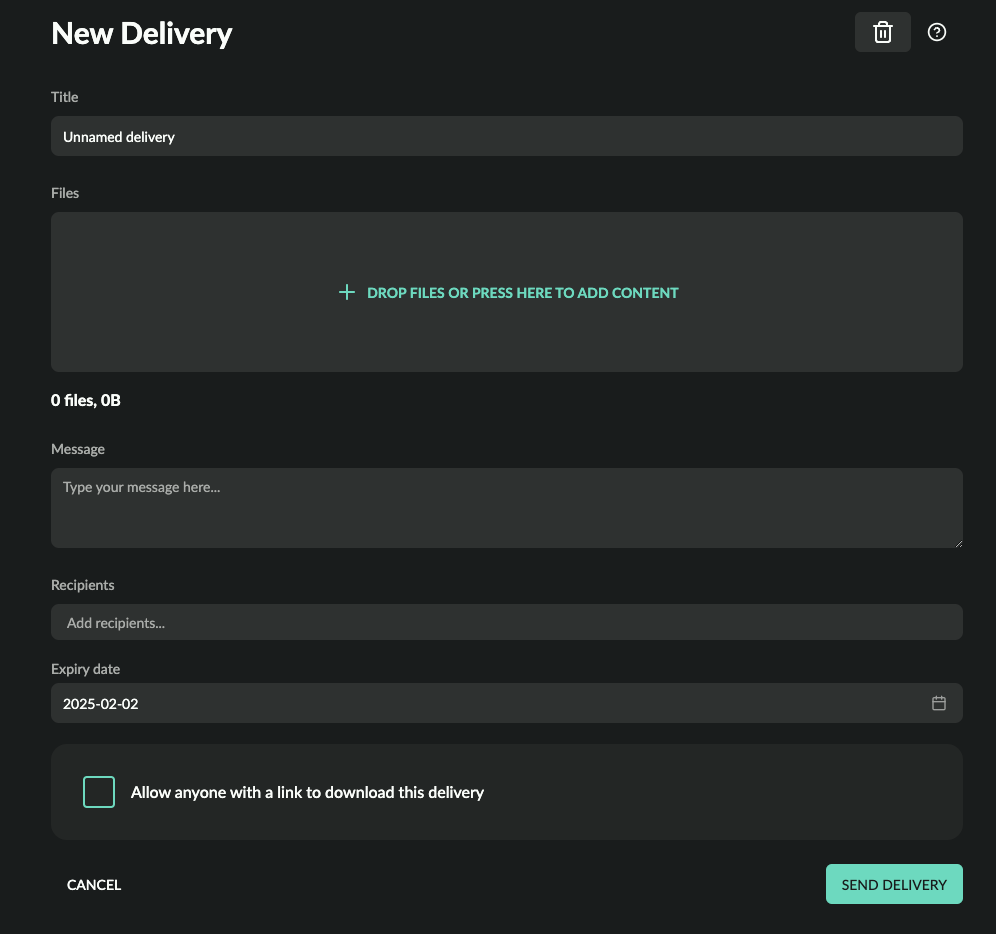
Screenshot of the delivery create page.
- To add content, click DROP FILES OR PRESS HERE TO ADD CONTENT. Choose either uploading from your computer to a temporary directory on accsyn storage, or browsing files and folders already on your accsyn storage:
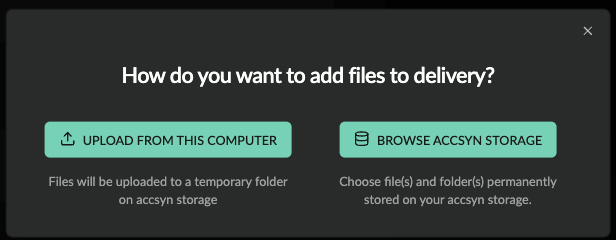
Upload from this computer
Upload the files and folders that belong in the delivery.
For anything beyond small single files, install and use the accsyn Desktop App — it is more stable and much faster than the browser, and it uses ASC for accelerated transfer of large folders. Browser upload is fine for small individual files.
- Choose the platform button (for example USE ACCSYN FOR MAC). The site checks whether the app is running. If it is installed, click I HAVE THE ACCSYN APP INSTALLED; otherwise click INSTALL THE ACCSYN DESKTOP APP.
- Download and run the installer. After launch, accsyn picks up the upload and prompts you for the files to send.
To use the browser instead, choose PROCEED WITH BROWSER and upload files one by one. Browsers do not support folder upload — switch to the app for folders or large packages.
- Remove files from the delivery with the trash can on the right of each entry.
- When the content is ready, enter the recipient email address(es). You can add multiple recipients; previous recipients are remembered and selectable from a list.
- Set the Expiry date (default: one month / 30 days).
Public delivery
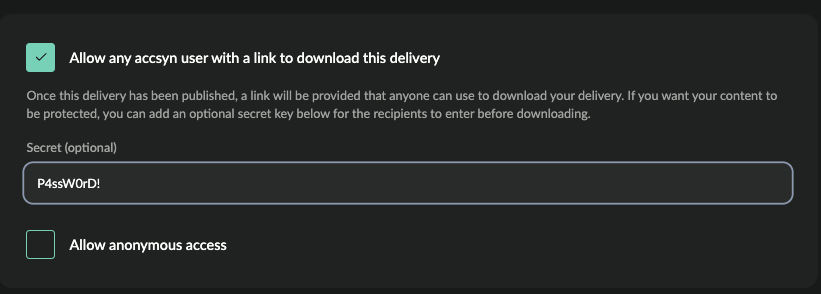
Screenshot of delivery access options.
By default, only listed recipients can download when signed in with the same email. To let any accsyn user with the link download, enable Allow any user with a link to download this delivery. Optionally protect the download further by filling in the Secret (password) field.
To allow download without an accsyn account, enable Allow anonymous access.
Disclaimer: Anonymous access is generally a poor idea — it exposes your files without a meaningful access-control layer.
Send delivery
When ready, click SEND DELIVERY to create the download link and email the recipients.
Note: You can leave a draft for later. Unfinished deliveries remain available for about 8 hours, then expire and you must start over.
How to create a standard delivery
A standard delivery is built from files and folders that already exist on your cloud or on-premises accsyn storage — ideal when the material is already staged and you want recipients to receive a link to a large folder tree without re-uploading.
Watch this video to see how to send a folder from storage:
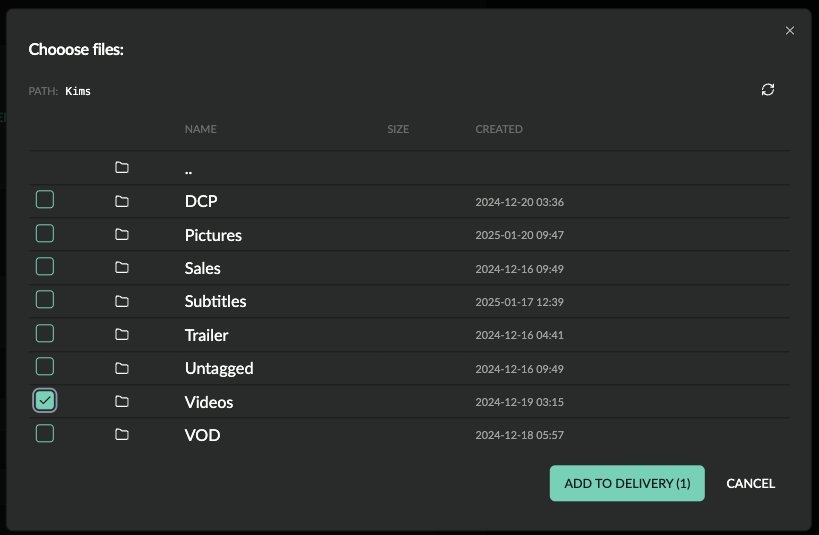
A file browser lists your accsyn storage. Select the file(s) and/or folder(s) to send, then click ADD TO DELIVERY:
How to create an upload request
An upload request is a reverse delivery — you ask users to upload files to a folder so you (or other operators) can download when they have finished.
This video shows creating an upload request to a temporary folder:
- Sign in to the accsyn web app at https://accsyn.io.
- Open Requested under the workspace menu on the left.
- Click NEW REQUEST. Choose whether recipients upload to a temporary folder or to a folder on your accsyn storage:
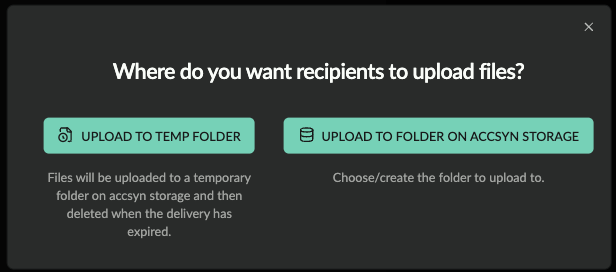
Upload to a folder on accsyn storage
A file browser lets you choose the destination folder. Create a new folder by entering a name and clicking the plus (+) button:
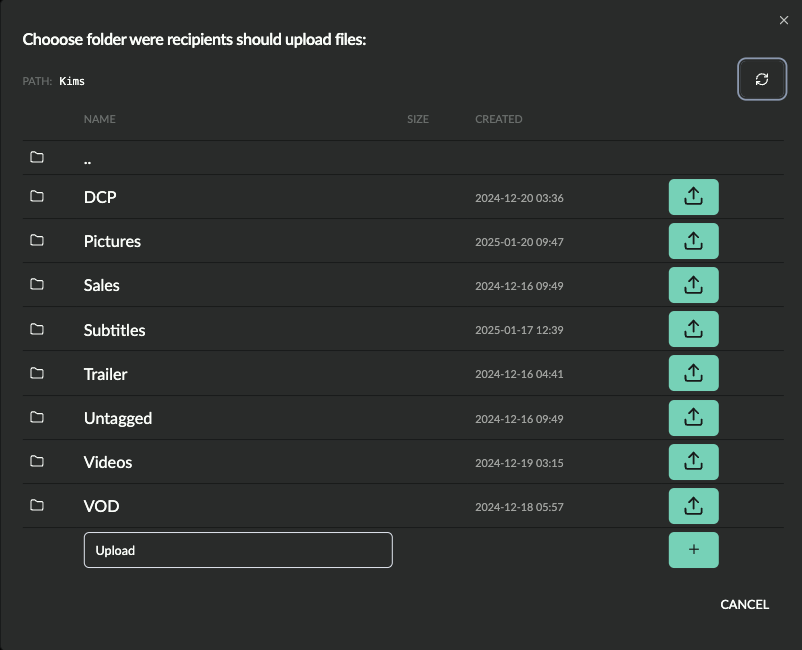
- Enter the email address(es) of users who should upload. Multiple recipients are supported; previous recipients are remembered.
- Set the Expiry date (default: one month / 30 days).
- As with a delivery, you can allow any accsyn user with the link to upload by enabling the corresponding option.
When ready, click SEND REQUEST to email recipients with upload instructions. If you chose a temporary folder, it is created on storage at send time.
Deliver from Cloud or on-premises storage
You can also create deliveries from permanent accsyn Cloud storage, or from BYOS volumes and shared folders.
- Download and install the accsyn Desktop App and sign in to your workspace as an admin or employee.
- Open the Storage view.
- Upload files and folders to permanent storage if needed.
- Select the files/folders, then click Share in the action bar and choose Deliver, or right-click and choose Share → Deliver.
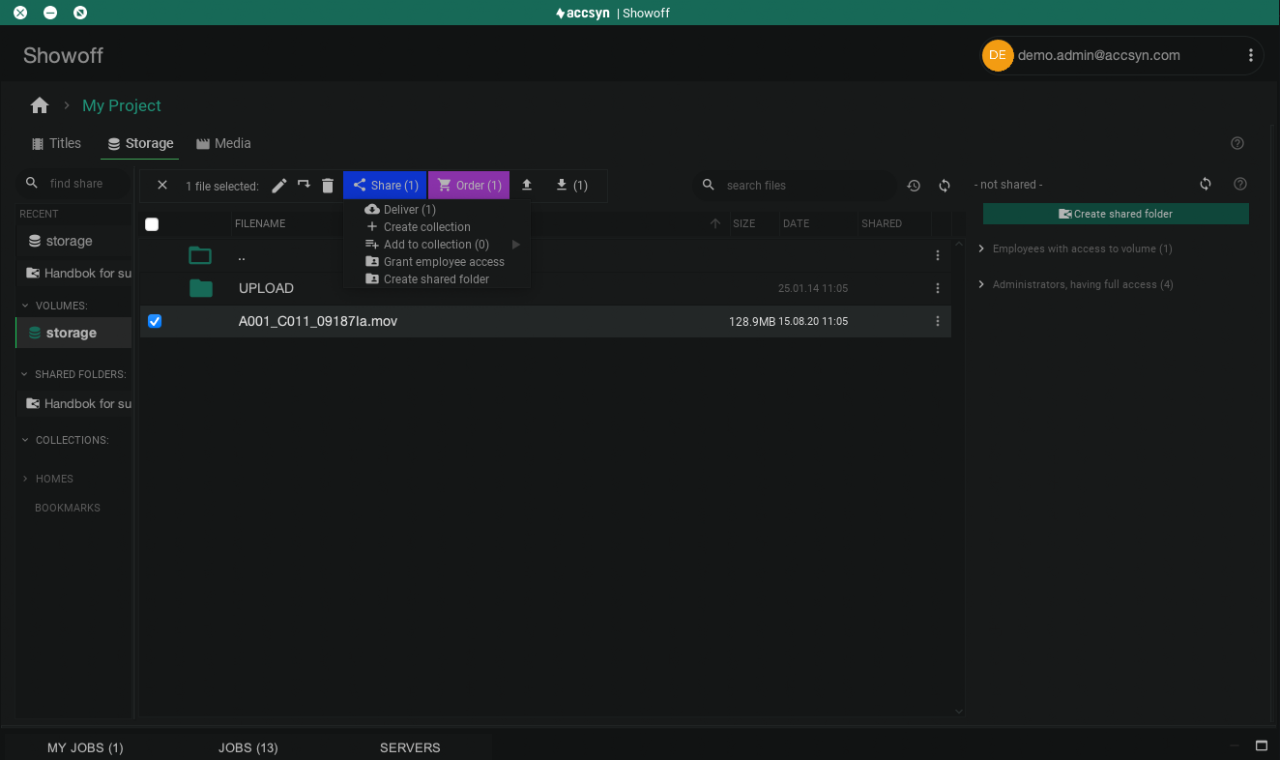
Screenshot of the Desktop App when choosing a file for delivery.
- Selected items appear in the cart on the right; add more as needed.
- Click NEXT RECIPIENTS to finish the delivery in the browser (same recipient and options steps as above).
Deliver from the Media Vault
Media in the Media Vault can be delivered the same way:
- Install the Desktop App and sign in as an admin or employee.
- Create the title and log the media to deliver.
- Select the media file(s) and choose Deliver from the action bar, or right-click and choose Deliver:
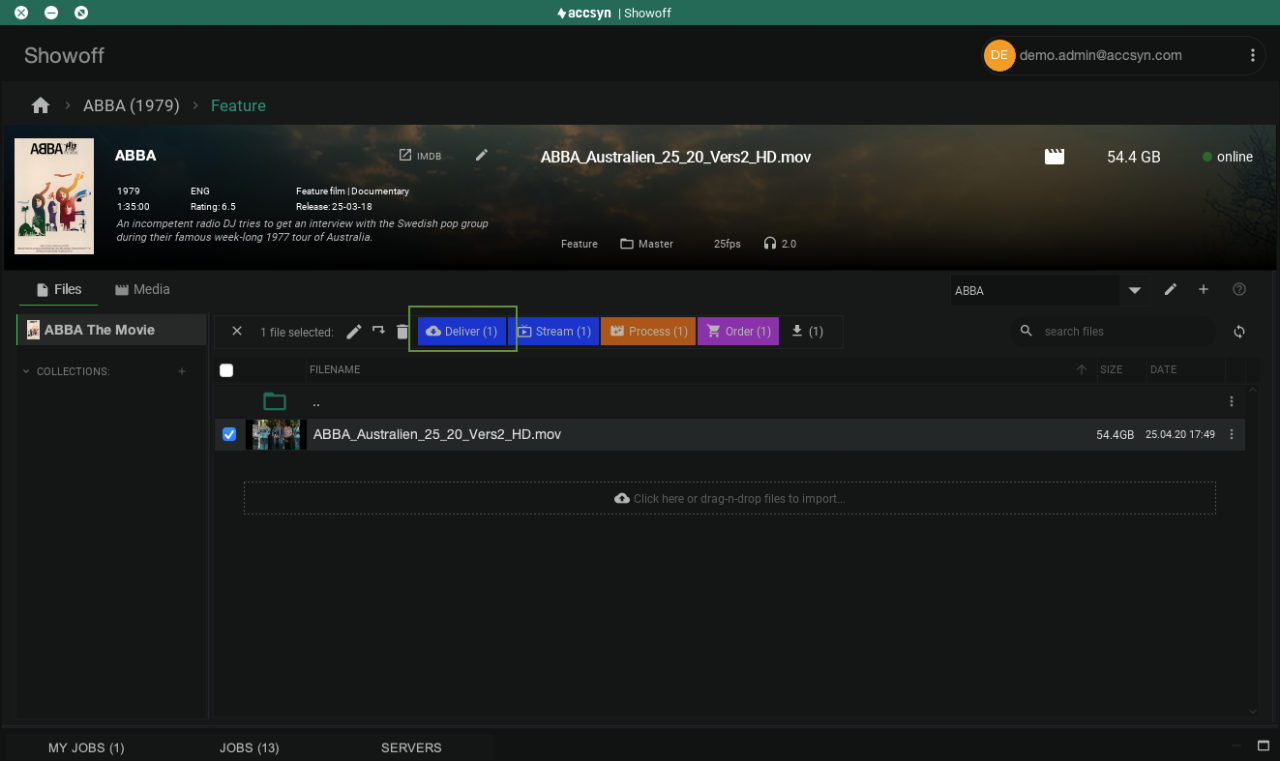
Screenshot of the Desktop App when choosing media for delivery.
- Media is added to the delivery cart; repeat until the package is complete.
- Click Next recipients to finish in the browser, as for any other delivery.
Request upload to Cloud storage
Upload requests can also be created from the Desktop App, targeting a permanent folder on accsyn Cloud or BYOS storage.
- Install the Desktop App and sign in as an admin or employee.
- Open the Storage view.
- Browse to the destination folder (create folders via the toolbar or right-click Create new folder).
- Click Share and choose Request upload here, or right-click and choose Share → Request upload here.
- The upload request opens in your browser so you can finish recipients and options (see above).
Create a delivery with the Python API
Deliveries can also be created programmatically with the accsyn Python API. Files already on accsyn storage can be submitted in one call with recipients; temporary deliveries can be created in init state, populated via a transfer job, then submitted.
Example — create and submit a delivery from existing files on storage:
delivery = session.create("Delivery", {
    "name": "Project reference",
    "tasks": ["myproject/reference.png", "logo.jpeg"],
    "recipients": ["lisa@example.com"],
})
Paths resolve on the default volume unless you qualify them (for example folder=… or volume=…). The delivery is submitted immediately and recipients receive an email with a download link — the same link-driven flow used for large ASC downloads in the app.
For temporary deliveries, upload requests, recipients, abort/finish, and download/upload transfer jobs, see the full Deliveries chapter. API keys and installation are covered in Developer Hub — Python API.
Note: The API is not available for Cloud Essentials or BYOS Lite workspaces.
Next: Monitor and manage a delivery.
Related articles: