Storage administration
This guide shows how to administrate your workspace storage - volumes, shared folders and collections.
Prerequisites:
- Logged on as an administrator at https://accsyn.io/admin/storage.
What is a volume?
A volume is the topmost folder on a server where accsyn is allowed to access files - download, upload, rename, move and delete.
- More than one volume may exist within a workspace.
- accsyn cannot access anything outside volumes, admins can access all volumes whereas employees and standard users must be given explicit access.
- One volume must be the "default" volume, the default volume is where home shares are created and new temp deliveries live.
- A volume must be served by a server, the server that is serving the default volume is called the main server.
- Volumes can be served on other sites, as proxy volumes, enabling replication across physical or cloud locations.
Volume list
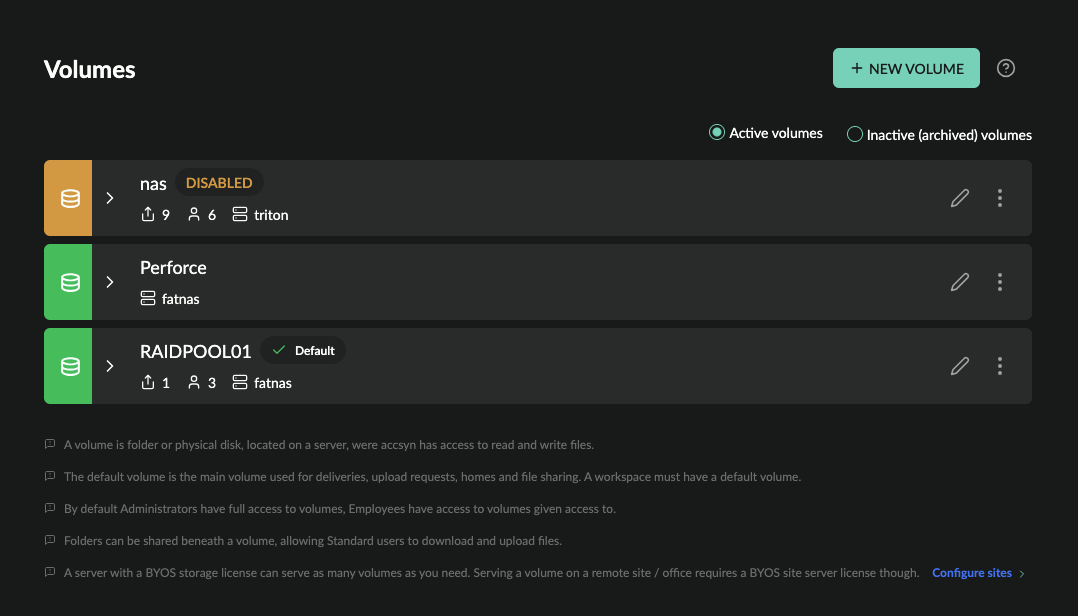
The volume list shows all active volumes within your workspace:
- Status indicator; Green is enabled, orange is disabled.
- Name (code); The name of the volume.
- Default indicator - points out the workspace default volume, where deliveries originate from and accsyn home share folders are created.
- Share count: Shows the number of shared folders beneath the volume.
- User count: Shows the number of users having access to the volume.
- Description; (Optional) The description of volume.
- Servers; List of main and site servers serving volume.
- Edit (pen) button.
- Menu button.
Volume menu:
- Edit; Bring up volume editor.
- Disable; Disable the volume.
- Enable; Enable the volume.
- Inactivate; Archive the volume.
- Activate; Restore volume from archive.
- Logs; Show log events related to the volume.
- Delete; Delete the volume.
Filtering:
- Active volumes; Show current active volumes
- Inactivate archived volumes; Show volumes that have been inactivated - kept in the workspace for audit reasons.
View volume
To view/expand a volume, click on it. Volume information that is presented is:
- Space usage, together with a summary of capacity, occupied and free space.
- A list of shares - shared folders and home folders.
A shared folder is a folder beneath, or the entire volume itself, where standard users can be granted access to download and upload files.
A home folder is a special type of personal shared folder that can be created upon invitation, to provide a default area of user collaboration.
Hint: For more information about operating shared folders and storage in general, see File Sharing.
Shares (folders/homes) list:
- Name; The given name of the share.
- Path; The (relative) path the shared folder is at.
- Metrics; The number of access points within the share folder, and the number of users having access to shared folders, as defined by ACLs.
- Accessed; The most recent time the share was accessed.
Share menu:
- Edit; Audit and edit the share.
- Logs; Display log events related to the share.
- Disable; Disable the share.
- Enable; Enable the share.
- Inactivate (archive); Remove the share but keep it in the platform for auditing purposes.
- Activate (restore); Restore an inactive share.
- Delete; Permanently delete the share, this will not affect physical data on disk.
Create a new volume
To create a new volume, click the NEW VOLUME button in the upper right corner.
A volume needs to be served by a server, choose the server from the list. The servers are listed with the site they are at.
Enter the local path for the accsyn volume and click Validate path when you are done, the path must exist on the server.
Enter the name of the volume and additional paths which this volume should be associated with.
When done, click CREATE to have the volume created. Click the cross (X) icon in upper right corner to cancel creation.
Edit a volume
To edit a volume, click on it in the list.
Access
Audit all users having access to the volume, as ACLs grouped by accsyn base roles:
- User; The user ident (email).
- Share; The shared folder or home the user has access to.
- Path; The path beneath shared folder where user has access.
- R(ead); Indicate if user has rights to list and download files.
- W(rite); Indicate if user has rights to upload and modify files.
- Granted; The date the ACL entry was created.
- Granted by; The user giving access.
- Ack; Indicate if user has acknowledged the grant.
Revoke access
Click the rightmost trashcan icon button at an ACL entry to revoke access for the user.
Note: administrators cannot be revoked access on volume level, they will need to be disabled or deleted on a user level.
Servers
List servers that are serving the volume, the server at the main site (hq) is coloured green.
To set/change the server for a site, hover the corresponding site and click the pen icon that appears. A list of servers configured at the site will be presented, if no servers are found you will need to install a new server on the site for the purpose.
You can override the path(s) that volume has at the site, when changing these - make sure that the server and clients at site can read and write files as needed at these paths.
Note: Site servers may require additional BYOS licences.
Attributes
Edit volume attributes such as server, paths and name.
Transfer settings
Override global accsyn protocol (ASC) file transfer settings for the volume.
NOTE: Transfer settings can be further overridden on share, queue and individual job level.
Email Settings
Override global email rules for jobs involving this share.
NOTE: Email settings can be further overridden on queue and individual job level.
Metadata
Define metadata for this volume, which will be appended to upstream metadata and provided to jobs with Workflows - API calls, engine execution, hooks execution, and so on.
Delete a volume
To delete a volume, open the volume menu (three dots icon) on the right hand side and choose Delete.
NOTES:
-
Default volumes cannot be deleted, assign another volume as default first.
-
This cannot be undone.
Any shared folders and homes beneath the volume will also be deleted. Also, collections containing files on the volume will have these file references removed.