Stream title media
Send VOD web streams so recipients can play tagged Vault media in a browser. Optional file downloads still use link-based delivery and ASC when recipients use the Desktop App.
Note: Web streaming includes an initial allowance of free views; further views are billed in arrears. See pricing.
Prepare streaming
- A title has been created.
- Video media is logged with Type = VID.
- For subtitles: matching Content on video and subtitle assets, and a Subtitles language tag on the subtitle media.
Create stream
- Sign in to the Desktop App on a Cloud (non-BYOS) workspace as an employee or administrator.
- Open the title. Filter by VOD category and select the VOD media to stream — or use the Video type filter to stream other video.
- Click Stream, or right-click → Stream.
- Media appears in the streaming cart on the right:
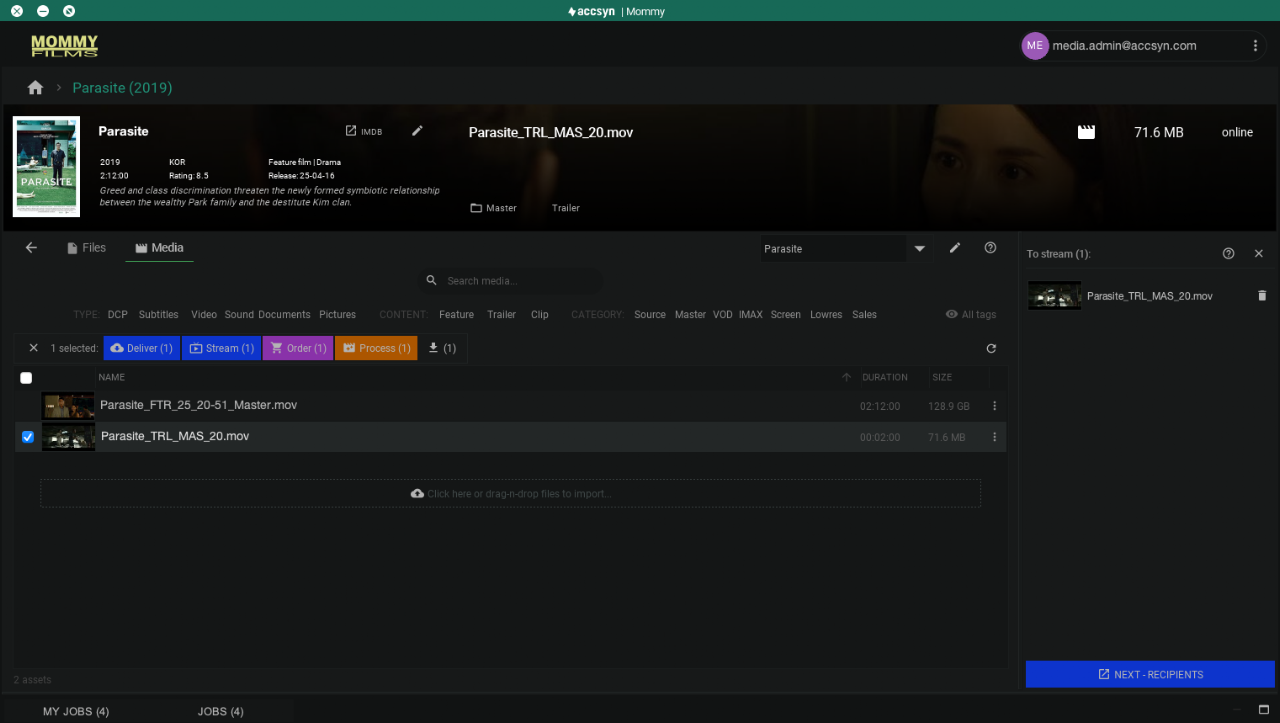
Streamable media in the cart, ready to submit.
- Add more media or ordinary files (recipients can download those while watching).
- Remove items with the trash can.
- Click NEXT — RECIPIENTS. If no HD HLS streaming proxy exists yet, transcoding starts on the farm; recipients may see a placeholder until it finishes.
A browser window opens on the standard delivery page for recipients, expiry, and access options.
Restricting download access
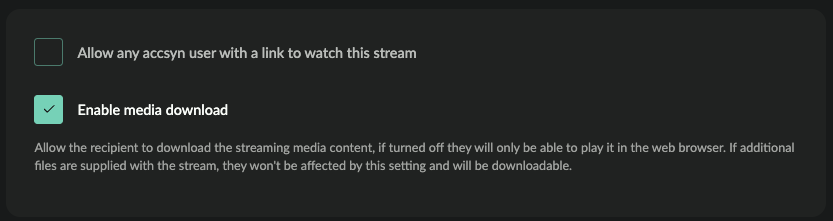
By default, VOD download is disabled — recipients can watch but not download. Enable Enable media download if they should also download:
Subtitles
Accsyn finds subtitle media that share the video’s Content tag and have Subtitles set to the language.
Example:
- Log
Festival_feature_4444_stream.movwith Content = FTR (Feature). - Log
Festival_feature_4444_stream_swe.srtwith Content = FTR and Subtitles = swe. - Repeat for other languages.
In the browser player, available subtitles appear on each playable file. Example with English subtitles:

More on deliveries: Create a delivery. Recipients: Receive a delivery.