Monitor and manage deliveries
This guide explains how to monitor deliveries — check whether recipients have responded — and how to modify them.
Whether the package is a handful of files or a terabyte-scale folder tree, the Outbound view shows the same status, recipients, and transfer progress for link-driven ASC downloads.
Prerequisites
- An active accsyn workspace trial or subscription.
- A web browser (Google Chrome recommended).
Monitor a delivery
Sign in to accsyn in your browser, open Outbound, and click the delivery you want to monitor.
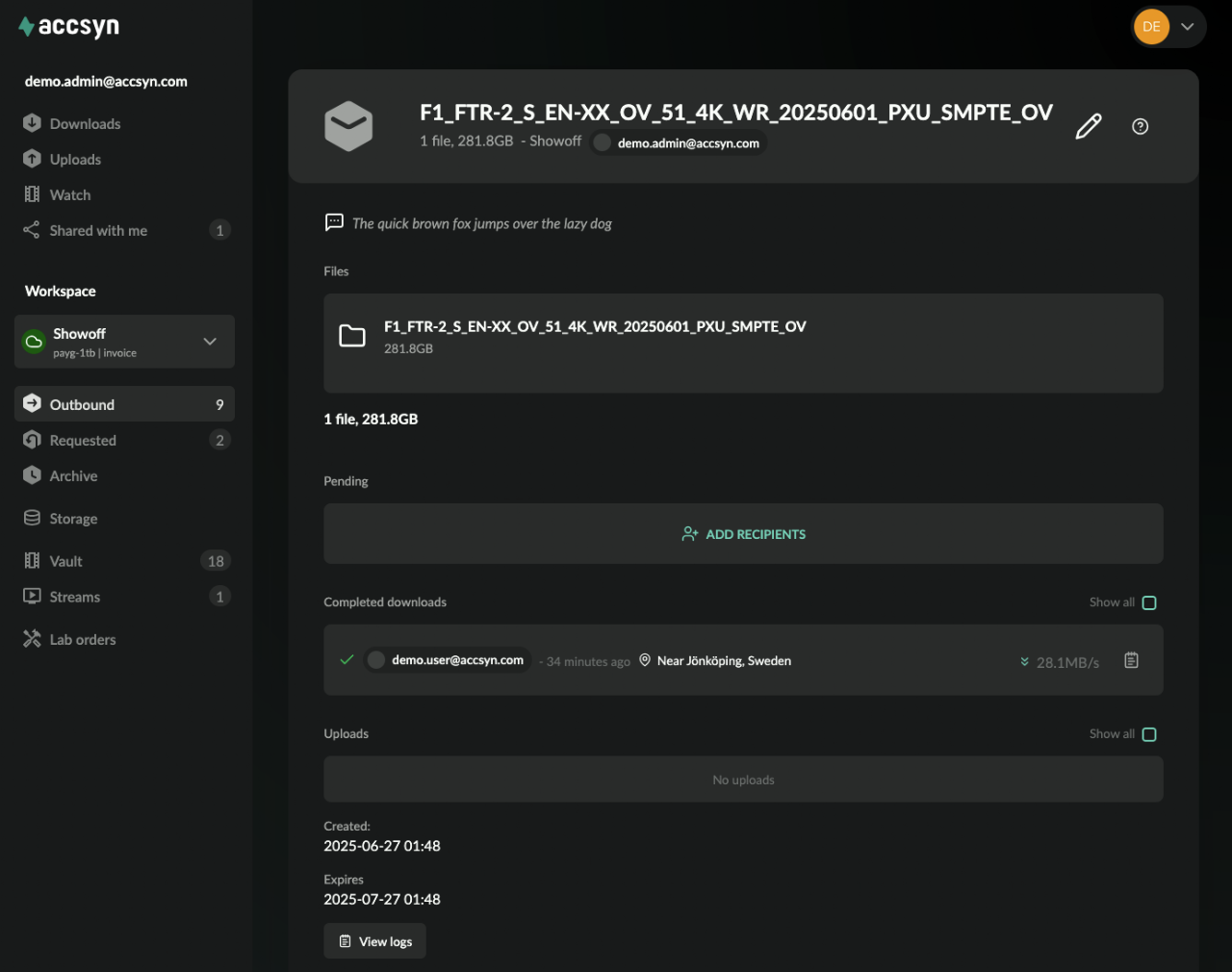
Screenshot of the delivery status view.
A delivery status page typically includes:
- Files — files or folders in the delivery, with size.
- Public link — (public deliveries) the link to the delivery or upload request.
- Transfers in progress — active transfers (recipients downloading, or uploading to a request).
- Pending — recipients who have not yet actioned the delivery or request, plus ADD RECIPIENTS (see below).
- Failed or aborted — failed or aborted transfers.
- Done — completed recipient transfers.
- Uploads — initial uploads performed when the delivery was created.
- Created — creation date.
- Expires — expiry date.
- View logs — job logs (see below).
Each user is shown with email and last login. Actioned transfers may also show estimated location, ETR, and speed.
Logs
Each delivery has a log covering its lifecycle — useful for debugging and security audit.
From Outbound, open the three-dot menu on the delivery and choose Log. On the status page, use View logs.
Each file transfer also has its own log, opened via the log icon on the right of each recipient.
Manage a delivery
Notify recipients
By default, recipients who have not actioned a delivery are reminded automatically twice:
- A first reminder when about two-thirds of the time to expiry has passed.
- A second reminder three (3) days before expiry.
Note: After expiry, temporary delivery files remain on storage for another 4 hours, then are permanently deleted. Files that already live on permanent accsyn Cloud or BYOS storage are not deleted when a delivery of those files expires.
To notify a recipient manually, click the paper-plane button on the right of that recipient in Pending. A reminder email is sent; if they do not receive it, ask them to check spam filters.
Add more recipients
You can add recipients to a delivery or upload request at any time. Open the delivery and click ADD RECIPIENTS in Pending. Enter one or more email addresses (press Tab between addresses), then INVITE RECIPIENTS.
New recipients receive an email with a link and instructions to download or upload — the same link-based flow used for large ASC transfers.
Remove recipients
Click the cross button on the right of a recipient, then confirm.
Edit a delivery
Choose Edit from the delivery context menu, or click the pen button in the upper-right of the status page.
You cannot add files after a delivery has been created, but you can change:
- Message — text included in the recipient email and shown when they open the delivery.
- Expiry date — a new expiry.
Troubleshoot a delivery
Most deliveries complete without issues. When recipients need help downloading or uploading:
- No delivery email — Messages are sometimes caught by spam filters; ask them to check spam. Confirm you have actually submitted/sent the delivery. If email cannot be delivered, ask them to sign in at https://accsyn.io with the same address you added as recipient — the item should appear under Downloads (or Uploads for an upload request).
- Transfer will not start or keeps failing — Have them whitelist the Desktop App in antivirus/firewall software and allow outbound TCP from port 45190 upwards toward the Internet and accsyn infrastructure.
- Transfer runs then fails or stops — Ensure they stay logged in and do not shut down the computer mid-transfer. Browser transfers must not reload or close the accsyn page until finished. Also check free disk space.
If problems persist, contact support via chat or email.
Delete or abort a delivery
Choose Delete from the delivery context menu (three-dot icon on Outbound), or use the trash can when editing the delivery.
Archived deliveries
Finished deliveries and upload requests appear under Archive in the workspace menu on the left.