Site administration
NOTE: This feature is exposed to BYOS workspaces only.
This guide walks through how to add and configure remote sites within your accsyn workspace.
Prerequisites:
- Logged on as an administrator to https://accsyn.io/admin/servers.
Tutorial
Learn how to setup sites in accsyn and have assets synced using the API:
What is a site?
A site is a remote physical or cloud location that enables file synchronisation and workflow collaboration across a geographically distributed organisation.
Servers and clients owned by elevated (admin or employee role) users can be assigned to sites, defining where they are located. When signing up a workspace, a default cloud storage and server are initialised at the accsyn builtin site "hq" - providing basic cloud file delivery, file sharing and media vault storage.
Site types
- Main site; This is the default site within a workspace, servers are assigned to this site by default and the server on main site serving the default volume is called the main server. See servers for more in-depth information. A workspace must have exactly one main site.
- Roaming; This is a built-in site to which all standard role user clients are assigned, this can also be called the road warrior site.
- accsyn; This is the accsyn cloud storage site, and is primarily assigned to new workspaces in the default accsyn setup before moving to BYOS. The accsyn site can be used in tandem with on-prem storage.
Site location based WAN IP
Clients belonging to elevated workspace users, but not assigned to any particular site, will be loosely assigned to the site if their WAN IP matches the WAN IP of a server on the site. This affects file transfers (see below).
Servers will not be auto-assigned this way, they will manually have to be assigned to the site.
Sites and file transfers
When a download or upload is initiated from a machine assigned to a site, or detected to be at the site based on the WAN IP, and the workspace setting Route transfers via site server (site_route_transfers) is enabled, the transfer will be carried out by the site server and not the client itself. This offloads the client so it can be turned off and transfers will proceed. Note that transfers might queue up on the site server and not schedule immediately as would be the case if the client were used as transfer endpoint.
When the setting is disabled, the initiating client remains the transfer endpoint.
Configure this under Admin → Settings → Site. See Workspace Settings.
Sites and compute/render jobs
For more information, see Workflows compute section.
Local hosts and share mappings
Sites are the durable way to connect a remote office or cloud location — typically with a site server serving storage at that place. For individual machines (home offices, vendors, single workstations), a lighter option is local file sharing via Hosts:
- The user maps a shared folder (or volume path) to a folder on their computer in the Desktop App share mappings.
- They grant read and/or write access on that mapping.
- While their client is online, workspace operators can pull (upload from the mapped folder onto main storage or a site) and push (download from main storage or a site onto the mapped folder).
Mappings can run through the Desktop App (user logged in) or a User server daemon for unattended 24/7 access. That model suits a single machine; for an entire office or cloud VPC with shared storage and sync, prefer a site and site server as described on this page.
See also File sharing — local machines.
Site list
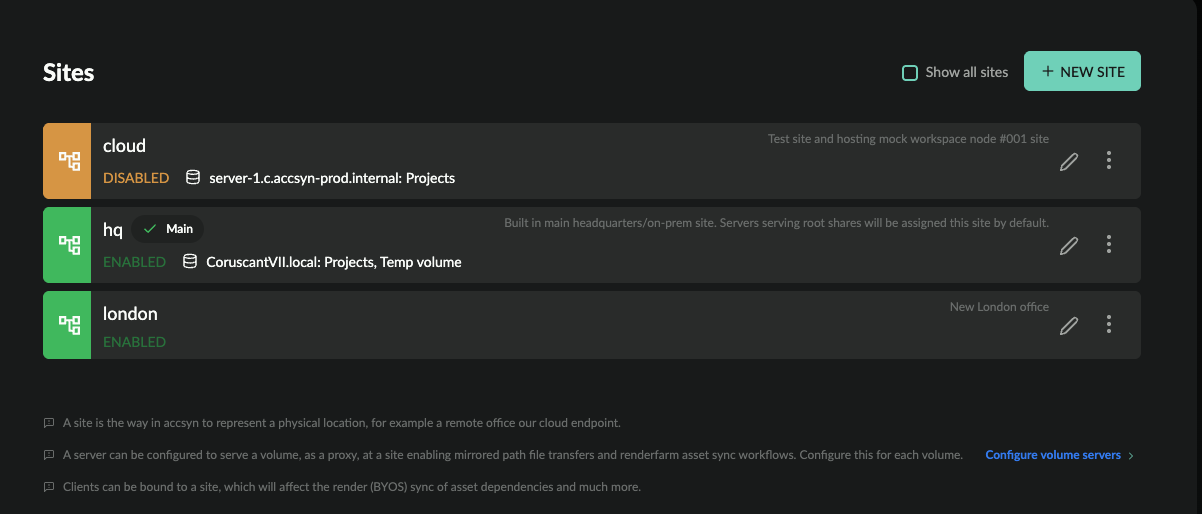
Toolbar:
- Show all; Display hidden built-in sites such as the accsyn and roaming sites.
The site list shows active sites within your workspace:
- Status indicator; green is enabled, grey is offline, yellow is disabled, dark orange is disabled and offline.
- Name (code); The unique name of the site.
- Main - indicates if this is the main site.
- Description; The description of the site.
- Status: (Second row) Shows the site status.
- Server & volumes: List of volumes being served, and the server(s) serving these volumes.
- Edit (pen) button.
- Menu button.
Site menu:
- Edit; Bring up the site editor.
- Disable; Disable the site, all jobs (file transfers, compute jobs) involving the site will be cut off and resumed again when site is enabled.
- Enable; Enable the site.
- Logs; Show log events related to the site.
- Delete; Delete the site.
Create a new site
To create a new site, click the NEW SITE button in the upper right corner.
Give a name (code) for the site, it must be unique within the workspace and contain letters a-zA-Z0-9_.- only with a maximum length of 32 chars.
Description (optional); Give the site a description, for display only.
When created, you can take the following actions:
- Install a new server at site, go to https://accsyn.io/admin/servers/new.
- Serve volume(s) at site, go to https://accsyn.io/admin/volumes, edit the volume that should be served by the server and then go to the "Servers" tab where you can set the server. Make sure storage is available at the site at the same physical disk locations as configured at the volume, you can override the paths if needed.
- Assign compute engines to server lanes, to enable remote office/cloud rendering capabilities. For more information, see Workflows.
Edit a site
To edit a site, click on it in the list or choose Edit from the site's menu.
Toolbar
- Disable site; Click this button to disable the site, note that all ongoing jobs involving the site will be interrupted.
- Enable site; Enable the site again.
Servers & Clients
List of servers and clients assigned to the site.
- Online status; green if online and checked in recently.
- Hostname (code); The hostname.
- Type; The type - server, app, user server.
- Last checkin; When the server or client was last seen.
- Spawned; When it was created.
- ID; The internal (API) ID of server/client.
NOTE: Site and compute/render servers require additional BYOS licences.
Attributes
- Code; The name of the site, click to edit.
- Status; The status of the site.
- Main site: Denotes the main site.
- Description; Set the optional description the site should have.
Settings
- Route transfers via site server (
site_route_transfers); Override the workspace setting for this site. When enabled, download and upload transfers initiated by clients on this site will be redirected to the site server. This offloads the client so it can be turned off and transfers will proceed. Note that transfers might queue up on the site server and not schedule immediately as would be the case if the client were used as transfer endpoint.
Workspace-level defaults are configured under Admin → Settings → Site. See Workspace Settings.
Metadata
Define metadata for this site, which will be appended to upstream metadata and provided to jobs with Workflows - API calls, engine execution, hooks execution, and so on.
Delete a site
To delete a site, open the site's menu (three dots icon) on the right hand side and choose Delete.
NOTES:
-
Server(s) assigned to site must be re-assigned to another site before proceeding.
-
The main site cannot be deleted, reach out to support to have another site be set as the main site.
- This cannot be undone.
Related resources
Install a site server, enabling hq-to-site file synchronisation and backups.
Map shares locally on a user machine for operator push and pull, or install a User server for unattended access.
Learn how to use the accsyn Python API to automate file synchronisation between your offices and/or cloud storage.