Engine administration
NOTE: This feature is exposed to BYOS workspaces only.
This guide walks through how to create and configure engines within an accsyn workspace.
Prerequisites:
- Logged on as an administrator to https://accsyn.io/admin/engines.
What is an engine?
An engine is a definition of what kind of work should be performed when executing a process at a client.
By default, file transfers utilise the hidden built-in "builtin-accsyn-transfer" engine. There is also the "builtin-accsyn-utility" engine that is used for internal tasks such as compressing a web delivery ZIP.
The accsyn compute/render farm feature allows for creating additional engines to perform queued execution of long-running resource (CPU/GPU) intensive tasks.
Engine list
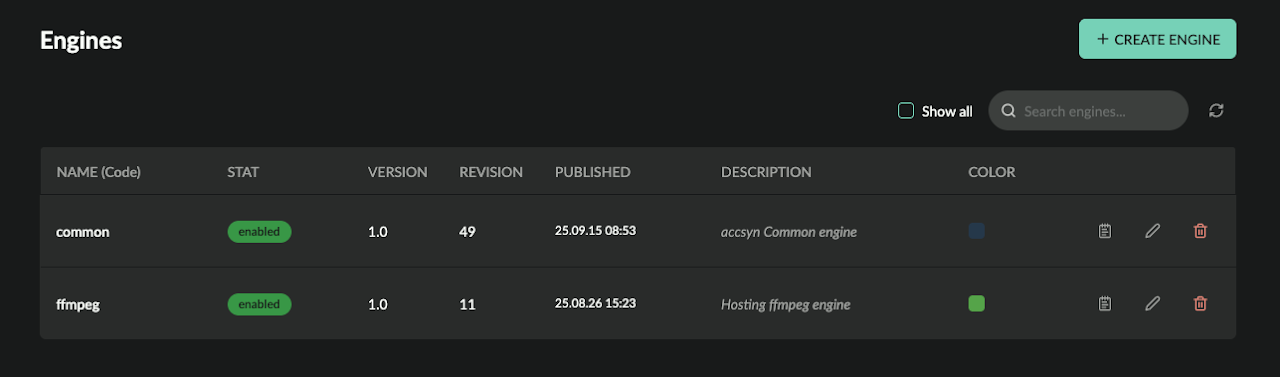
Toolbar:
- Show all; Display hidden built-in engines.
The engine list shows active engines within your workspace:
- Name (code); The unique name of the engine.
- Status indicator; green is enabled, grey is disabled.
- Version - The major version of the engine script.
- Revision; The publish revision of the script.
- Published: The date engine was published.
- Description: Engine description.
- Colour: The engine colour.
- Log; View engine log.
- Edit (pen); Edit the engine.
- Trashcan; Delete the engine.
Create a new engine
To create a new engine, click the NEW ENGINE button in the upper right corner.
- Code; Give a name for the engine, it must be unique within the workspace and contain letters a-zA-Z0-9_.- with a maximum length of 32 chars.
- Enable; Define if engine should be created enabled or disabled.
- Python script; Input/paste the engine Python script here, it will be validated (Python 3.10).
- Description; (Optional) Give the engine a description, for display only.
- Vendor; (Optional) The company/organisation/person providing the script.
- Colour; (Optional) Give the engine a unique colour, for display only.
Click Create & Publish when you are ready, or Save Draft if you want to create the engine but not publish it yet.
When created, you can take the following actions:
- Assign engine to one or more lanes, go to https://accsyn.io/admin/servers.
Edit an engine
To edit an engine, click on its pen button in the list.
Script
Edit the script and click either Save Draft to continue editing later, or Update & Publish.
Attributes
- Code; The name of the engine, click to edit.
- Status; The status of the engine.
- Description; Set the optional description the engine should have.
- Vendor; Update the vendor.
- Colour; Update the colour.
Settings
Engines currently have no settings.
Metadata
Define metadata for this engine, which will be appended to upstream metadata and provided to jobs with Workflows - API calls, engine execution, hooks execution, and so on.
Delete an engine
To delete an engine, click the red trashcan button on the engine in the listing.
NOTES:
-
No job(s) using the engine can be active, they have to be aborted.
-
Engine will be de-assigned from lane clients.
- This cannot be undone.
Related resources
Install and assign engines to a render/compute server.
Learn how to use the accsyn Python API to automate file synchronisation between your offices and/or cloud storage.