Log title media
Log media beneath a title: upload files into the title folder and ingest them into the Media Vault database. Tagging turns files on Cloud storage into managed deliverables; uploads run over ASC via the Desktop App.
Prerequisites
- Sign in to the Desktop App as an administrator or employee.
- Have a title created.
Understanding Vault ingest
Before title-library features apply, files on accsyn Cloud storage must be uploaded and ingested into the workspace media database.
When you are in a title context and an uploaded file is recognised as media, accsyn ingests it: a media entity is stored with extracted metadata and, for pictures or video, thumbnail and proxy assets.
Note: You can upload without ingesting (for later ingest, or to leave files unmanaged). Do that from the Storage view.
Ingested media appear in the Media view. Non-ingested files appear only in the Files view.
Log master media
Logging usually starts with masters. Example: log a trailer master.
- Open the title. Use Files or Media view. Logging from Files tends to preserve the current folder path; logging from Media lets accsyn suggest a folder from type, content, and category tags. This example uses Media:
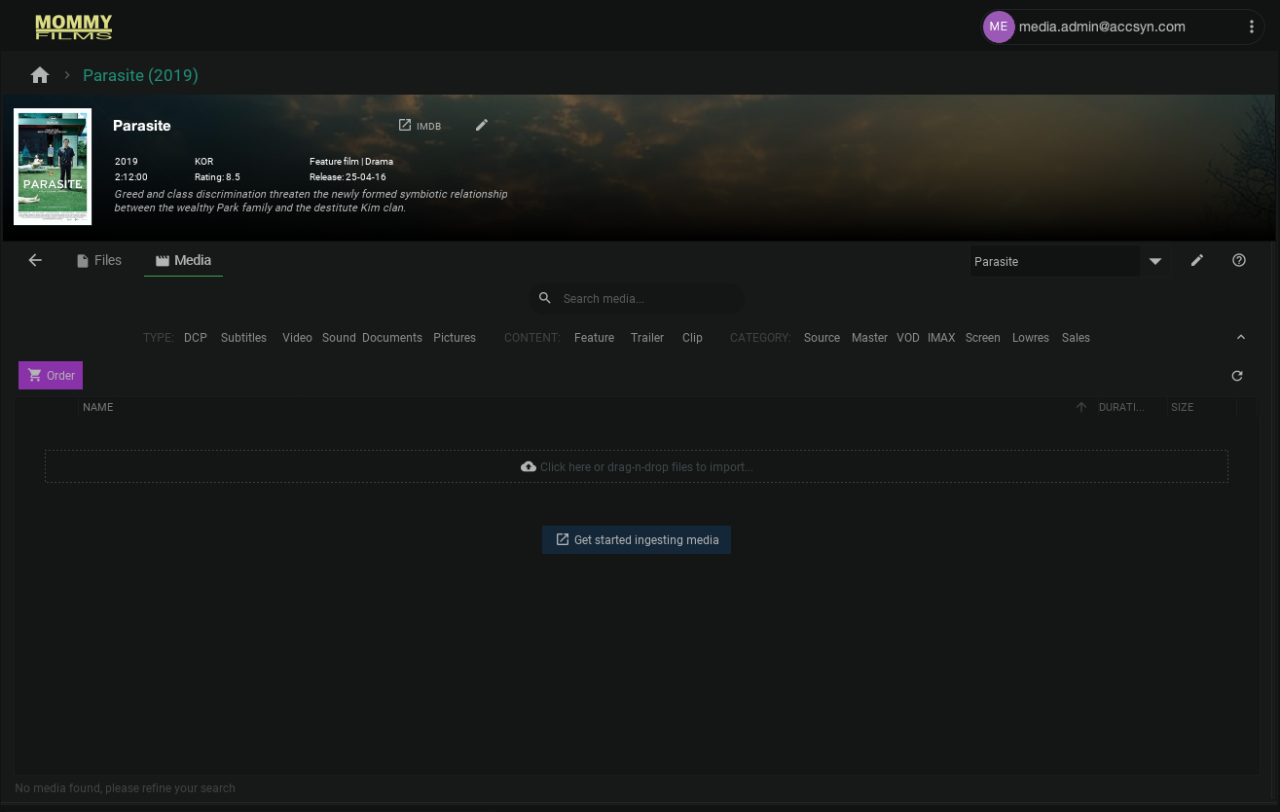
- Drag and drop the master onto accsyn. The ingest dialog appears:
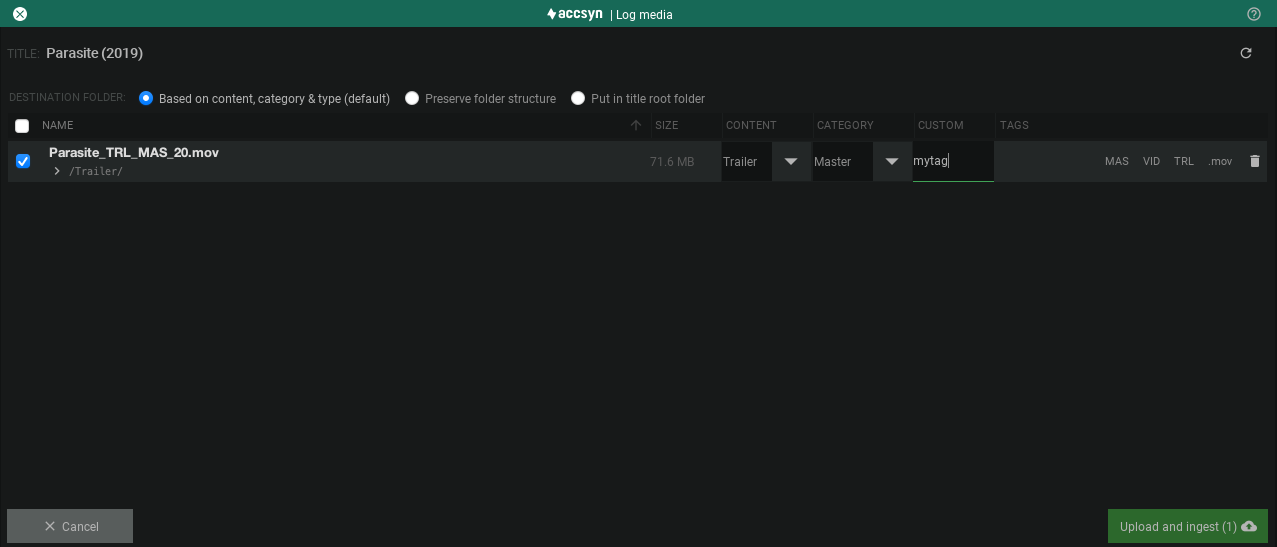
Destination folder — how the destination path is chosen:
- Based on content, category & type (default in Media view outside a folder) — Accsyn picks a suitable folder from tags.
- Preserve folder structure (default in Files view) — Keep the current folder; in Media view this puts files at the title root.
- Put in title root folder — Upload with no extra subfolder.
Checksum — Enable validation so accsyn calculates an MD5 checksum (or runs DCP validation). You can also enter a known checksum to validate against. Without a provided checksum, accsyn cannot prove integrity on upload and stores the calculated value. If validation is off, no checksum/DCP validation runs, but you may still enter a checksum to pass along as delivery metadata.
Tag the media
- Content — Feature, trailer, or clip
- Category — Accsyn standard categories for a video master library (for example MAS, DCP, VOD)
- Custom — Free-text tag
Accsyn may infer other tags from the filename (grey pills). Remove files with the trash can.
- Click Upload and ingest.
Media is created with Uploading status, then transferred with the accelerated ASC protocol. After upload, accsyn extracts technical metadata and builds thumbnail and picture/video proxies where applicable.
Logging other media — DCPs
The Vault supports a wide range of video and picture media, with a focus on masters and related assets for distribution and archival.
A folder is recognised as a DCP if it contains a file matching *cpl*.xml. Without a matching CPL, it is treated as an ordinary folder and is not ingestible as a DCP.
Ingesting already-uploaded media
Files uploaded from Storage (outside a title) can be imported later:
- Open the title, or create a title on the folder that holds the files.
- In Files, browse to the file(s).
- Select them and click Ingest in the toolbar.
- Choose destination and tags as when logging new media.
Edit media
After logging, adjust tags:
- Select the media.
- Right-click Edit media, or use the three-dot menu → Edit media.
- Use the editor panel on the right.
- Adjust tags (including the tail tag if needed). Changes save as you edit.
When the title’s media is logged, continue with Working with titles and media.
Related articles:
Create title — create a new title in the library.