Clip and still image extraction
Extract clips and stills from tagged Vault media without downloading masters to process locally. Results can be delivered back over the usual delivery / ASC path or written to storage.
Watch this video to learn clip extraction:
Accessing
- Play a proxy from the Vault, or
- Select media and open the Media processor.
Layout
Extraction is built into the proxy player:
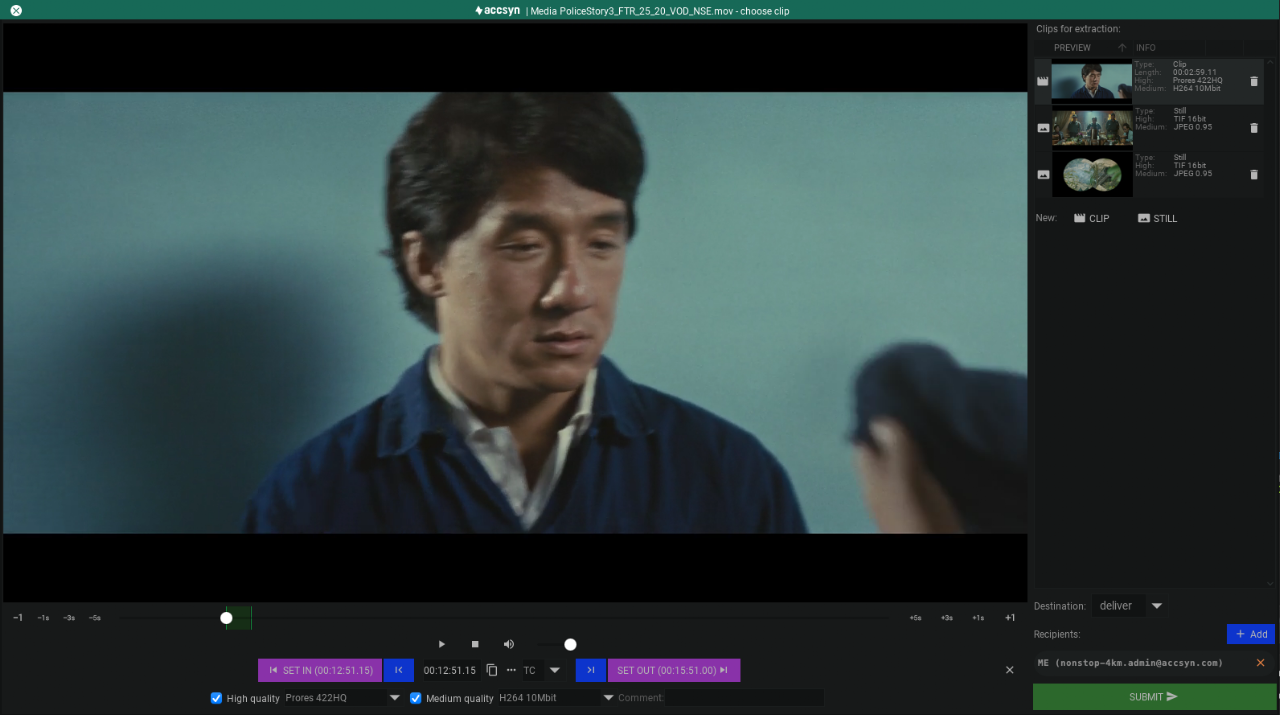
Seek bar — Current position in the movie:
- In edit mode: frame steps of 1 frame, 1 s, 3 s, and 5 s
- Selected clip range shown in green
- When selecting a clip, the bar jumps to the in point
Player controls — Play, pause, stop, volume.
Clip bin (right):
- List of clips and stills
- Add clip / still buttons
- Destination — what to do with output
- Submit
Clip editor (under the player):
- SET IN — Set in point to the current frame
- |< — Go to in point
- Timecode display
- Copy timecode to the clipboard
- … — Enter timecode or frame manually
- TC / FR display mode
- >| — Go to out point
- SET OUT — Set out point
- High quality — Enable high-quality export and choose preset
- Medium quality — Enable medium-quality export and choose preset
Adding a clip
- Move to the desired in point.
- Click CLIP.
- A clip is added with out point at +1 s by default.
- Adjust in/out with the playhead and SET IN / SET OUT (updates immediately).
- Set high / medium quality options.
Adding a still image
- Move to the desired frame.
- Click STILL.
- Adjust position with the playhead and SET FRAME if needed.
- Set quality options.
Removing a clip
Use the trash can on the clip in the bin.
Destination
- Deliver — Deliver results to you or chosen recipients.
- Custom — Write results to a folder on storage.
Start extraction
Click Submit to queue farm transcoding. You receive email when finished. Track progress under MY JOBS at the bottom of the app.