Receive a delivery
This guide is for anyone expecting an accsyn delivery or upload request.
A delivery link can represent anything from a single file to a large folder with many files at terabyte scale. Using the Desktop App, the download runs in the background over the secure, accelerated ASC protocol — with folder support and resume if the transfer is interrupted.
Note: If you were granted access to a shared folder or collection instead, see Access shared folders.
This video shows how to download a delivery:
If you expect a delivery, check your email for a message from accsyn:
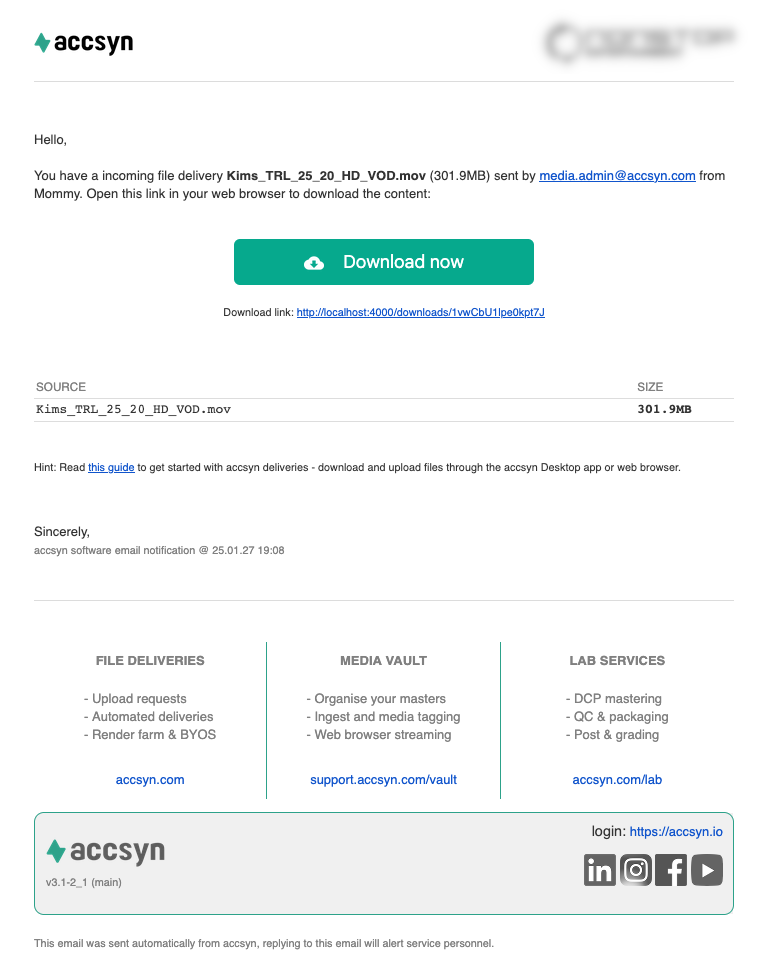
Click Download now (or Upload now for an upload request) to open the delivery in your browser.
If you did not receive an email, check spam filters. You can also open https://accsyn.io, sign in with the email address the delivery was sent to, and find it under Downloads.
Using accsyn for the first time
If you do not have an accsyn account yet, register one.
Note: Anonymous access is not available for ordinary deliveries. If you need access, ask the sender to add your email as a recipient.
You can sign up with email or sign in with Google (recommended when applicable).
Downloading the delivery
After you sign in, you see the delivery view with the package contents. You can also open it anytime from Downloads in the left menu.
Click DOWNLOAD NOW:
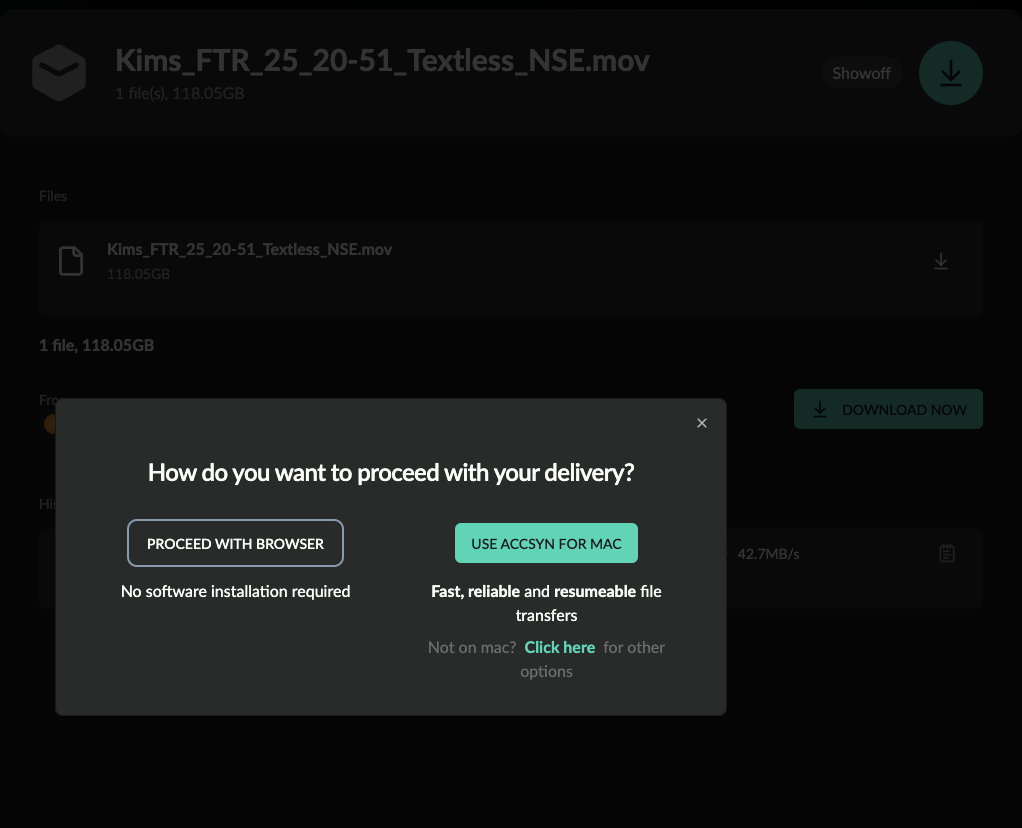
Screenshot of a delivery and download options.
You are offered two options:
- USE ACCSYN … (Desktop App) — Recommended for stable, secure, accelerated deliveries. The app downloads in the background over ASC, supports full folders (including very large packages), and resumes if interrupted.
- PROCEED WITH BROWSER — Secure browser download, but not accelerated or resumable in the same way.
Important: Web browsers do not download multiple files or folders natively. If the delivery is not a single file, accsyn may try to ZIP the package first — which can take a long time for large folders. Prefer the Desktop App for multi-file or large deliveries.
After you choose a method, you are asked where to save. Confirm to start the download:
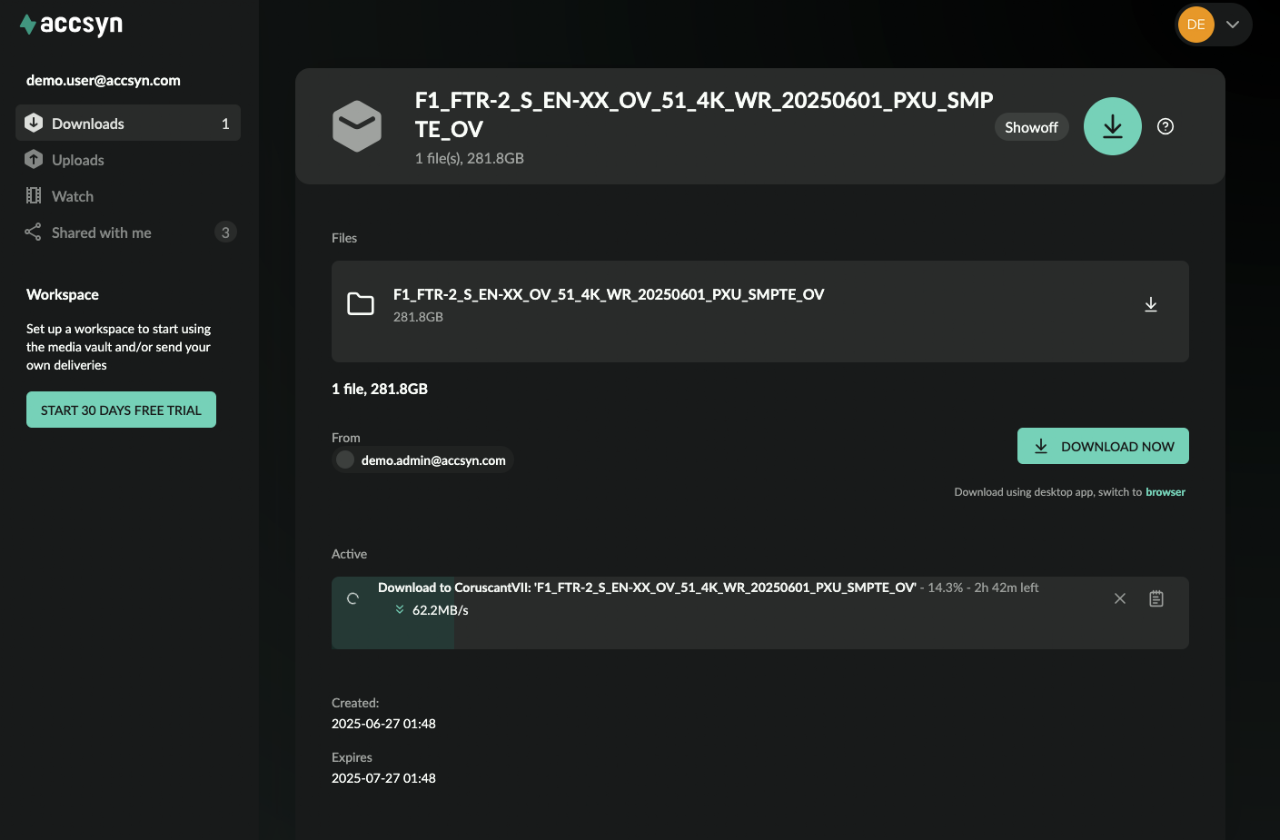
Screenshot of a delivery being downloaded.
Notes:
- Browser download — do not close or reload the page until the transfer finishes.
- Desktop App — you can close the browser and reopen it later to check progress. If you log out of the computer or quit the app, the transfer pauses and resumes when you sign in and start the app again.
Upload to a request
For an upload request, you see files already uploaded (by you or others) and an UPLOAD NOW button. Use the same browser-or-app choice; browser upload is somewhat accelerated and supports multiple files, but large folder trees are still best handled with the Desktop App and ASC.
Upload requests also appear under Uploads in the left menu.
Watch this video on actioning an upload request:
Watch a stream
Streams are part of the Media Vault: watch a movie in the browser with no extra software. Open the stream from the email, then click the green play button on the VOD media file.
All streams shared with you are listed under Watch in the left menu.
If the sender included downloadable files with the stream, download them the same way as a normal delivery.
Automatic download with a User server
If you receive deliveries regularly (for example a cinema, showroom, or office drop-off machine), install accsyn as a User server (daemon/service) and set a local download folder for that host. Deliveries sent to your account are then downloaded automatically over ASC while the machine is on — without opening the Desktop App or staying logged into an interactive session.
See Hosts for daemon install and automated delivery setup.
Troubleshooting a delivery
If download or upload fails, start with the transfer log — click the log icon on the right of the transfer:

Common issues:
- Cannot install the app (permissions or policy) — The Desktop App does not require administrator rights to install, but local policy may still block it. Ask IT to whitelist the application. If that is not possible, use browser delivery for smaller packages.
- App cannot connect, or transfers are interrupted — Local antivirus or firewall software may interfere. Ask IT to whitelist the accsyn executable and allow Internet communication. ASC uses TCP ports starting at 45190 and upwards.
- App cannot write the file — Disk may be full, the destination folder may deny write access, or antivirus may block writes. Check free space and ask IT to whitelist accsyn for the download location.
Still stuck? Contact support via chat or email.