Publish Workflow
NOTE: This feature is exposed to BYOS workspaces only.
This guide walks through how to set up a publishing workflow within your accsyn Workspace.
What is publish?
Common in media production is the need to work with external vendors; the accsyn File Sharing feature is ideal for setting up shared folders to distribute work assets and also receive the final work done.
accsyn Publish is a special uploader that adds a layer of validation and also facilitates automated ingest of material into the production system. This is a huge time saver as it eliminates a lot of manual work and brings your external vendors closer to production - as if they were a part of your in-house team.
Publish is driven by the accsyn Hooks subsystem.
How does it work?
The following schematic visualises the accsyn publish workflow:
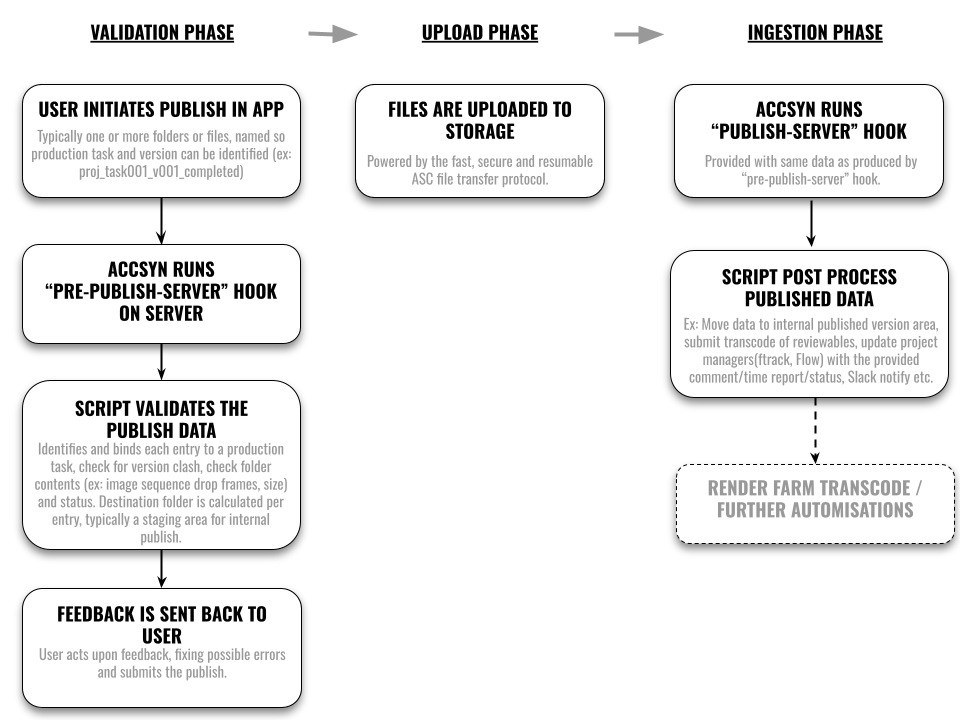
The remote user logs on to the desktop app, chooses the publish option and drops the files onto the publish area.
Validation phase
What happens is that accsyn reads the full list of filenames, folders and file sizes. The script configured for pre-publish-server hook is then run on your server, allowing you to validate the file list and give feedback to the user - this is before any file is actually uploaded.
The pre publish script can:
- Detect if any required files are missing.
- If file sets are incomplete.
- If files have the wrong naming convention.
- File sizes do not add up.
- If non-publishable files still can be uploaded.
- Determine the destination path for each file/folder.
The user will then be presented feedback, for each item - typically a folder per task in a post production workflow. If all is greenlit, the user will be able to publish the files.
Upload phase
The pre-publish provides the path to where files will be uploaded; this way you can steer exactly where files will end up - typically a staging area for further ingestion.
Important Note: The user does not require write permission to this path, leaving it to the pre publish hook logic to determine the upload destination per entry.
Ingestion phase
When the files are uploaded, the publish-server hook is run with the same payload as provided by pre-publish-server hook, with additional comments, statuses and time reports provided as entered by the user.
With this script you can then further ingest the files into your system, for example submit a Quicktime proxy movie transcode job to a render farm and publish a version to a shot tracking system such as ftrack, flow or sheets.
Publish hooks developer guidelines
Prerequisites
The publish feature is 100% code driven, you will need basic Python developer experience. We provide production ready template scripts on our public GitHub that you should be able to download and augment:
Example publish scripts @ GitHub
Note: In this guide we assume your publish scripts will be written in Python, and deployed on a Linux server.
- An active BYOS workspace, with an active administrator login.
- An accsyn server, be it the main storage server or a separate server where you already have configured hooks to run.
- Python installed at the server.
- (Optional) A pyenv designated to run the scripts, providing additional dependencies.
Developing the pre publish hook script
Here follows example hook input JSON, from a user publishing a folder "proj_task001_v001_completed" containing an image sequence:
A breakdown of the input:
- hostname; The name of the remote computer the publish was initiated at.
- ip; The remote IP address of the client.
- client; The ID of the remote accsyn client.
- metadata; The user metadata, aggregated with workspace metadata.
- hook; The name of the hook being executed.
- user; The ID of the user.
- user_hr; The user's unique code identifier (email).
- files; The file(s)/folder(s) to be published, each file corresponding to one item/entry to be published and having a unique id. Folder items recursively contain another "files" entry. Folder sizes are provided as the sum of file sizes within a folder. is_dir attributes directories.
After script logic has processed the data, output should be passed back to accsyn by writing JSON to the file path given as argument to the script. Here follows example feedback for the data above:
Breakdown of the output:
- guidelines; (optional) Plain text, or HTML, formatted instructions to the remote user giving guidance on how to publish their data into your production pipeline.
- comment; If true, user must provide a comment - e.g. add a note describing work that has been done.
- time_report; If true, user must report time spent on the work task.
- statuses; A list of statuses user is allowed to choose among. The default proposed status should have the "default": true key set.
- files; File entries, augmented with feedback data. See below.
File entry format:
- id; The publish entry id, should be preserved from the input.
- warning; String describing the reason the entry was not approved, will be presented clearly to the user within the desktop app.
-
rejected; If true, the file entry is rejected with the warning provided. Entries below have no effect.
-
ident; An unique entry identifier for the publish entry, provided as a label/human readable identifier to the remote user. Defaults to the filename.
- can_publish; If true, the publish entry is approved as is.
- can_upload; If true and can_publish is false, file/folder are still allowed to be uploaded. E.g. the entry was not technically approved, but "panic" upload is allowed - typicall to a staging area for manual hands on by staff.
- path; If approved, or can be uploaded, this is the destination path that will be used for that entry during upload phase. Can be given as an absolute path that accsyn understands (derived from configured volume platform paths), or in accsyn notation (ex: volume=projects/staging/proj_task001_v001_completed)
- info; (optional) Additional feedback to the user on this entry.
- comment_label; (Optional) The label to precede the comment input field, defaults to: "Comment:".
Note: additional entries provided by the pre-publish are preserved and provided as-is to the publish/ingest hook
Developing the publish(ingest) hook script
Here follows example JSON data provided to the "publish-server" hook upon arrival of a publish upload:
The data is very similar to the standard data passed on to a job lifecycle hook (ex: job-post-done-server); the base entries are covered fully here.
Breakdown of entries in the files JSON data sub-structure:
- time_report; The time (in seconds) reported by user.
- path; The destination path, as dictated earlier by the pre publish hook (see above).
- filename; The last path entry.
- is_dir; If true, the entry is a directory.
- v; The internal accsyn ID of the destination volume.
- v_hr; The name of the destination volume.
- ident; As provided by the pre publish hook(see above).
- can_publish: As provided by the pre publish hook (see above).
- comment; The comment entered by the user.
- status; The status entered by the user.
- ..; Additional entries provided by from the pre-publish hook.
Configuring the pre publish (validation) hook
Assuming you have implemented the initial pre publish Python script and it is ready for testing:
- Store the pre publish script on the server, for example /mnt/pipeline/accsyn_scripts/pre_publish.py.
- Log on to accsyn.io/admin/settings as an administrator and go to the Publish tab.
- Check Enable publish, it will give an alert that publish hooks are not setup which is fine.
- Go to Hooks tab and edit the Hook configuration.
- Go to the pre-publish-server tab and locate the script entry that corresponds to the operating system the server is running.
- Enter the script command line, for example "python3 /mnt/pipeline/accsyn_scripts/pre_publish.py ${PATH_JSON_INPUT} ${PATH_JSON_OUTPUT}" (replace python3 with full path to venv executable if applicable).
- Click save.
Important notes:
- The expression ${PATH_JSON_INPUT} will be replaced at runtime with the path to the JSON data file (located in the default accsyn temp location). Set up your script to read publish data from this path (sys.argv[1]).
- ${PATH_JSON_OUTPUT} will point to a JSON output file where your script is expected to save the data returned to the user's accsyn desktop app. Set up your script to output data to this path (sys.argv[2]).
- Try to make the script fairly quick to execute, maximum 30s, so as not to keep the remote user waiting too long for the response.
Now test the pre publish hook by publishing a file and/or folder, the stdout and stderr of hook execution are streamed to the standard accsyn server log (located at /var/log/accsyn on Linux). Iterate implementation of the pre publish script until the desired validation process is solid.
Configuring up the publish(ingest) hook
This is an optional step, and can be left out if no post-processing of files is needed on arrival.
- Store the publish script on the server, for example /mnt/pipeline/accsyn_scripts/publish.py.
- Log on to accsyn.io/admin/settings as an administrator and go to the Hooks tab and edit the Hook configuration.
- Go to the publish-server tab and locate the script entry that corresponds to the operating system the server is running.
- Enter the script command line, for example "python3 /mnt/pipeline/accsyn_scripts/publish.py ${PATH_JSON_INPUT}" (replace python3 with full path to venv executable if applicable).
- Click save.
Important notes:
- The expression ${PATH_JSON_INPUT} will be replaced at runtime with the path to the JSON data file (located in the default accsyn temp location). Set up your script to read publish data from this path (sys.argv[1]).
- The script should not execute long running tasks, it is best practice to run such tasks by a background process executor server like a render farm or similar.
Testing
Now publish a file and test the publish script, the stdout and stderr of hook execution are streamed to the standard accsyn server log (located at /var/log/accsyn on Linux). Iterate implementation of the pre publish script until the desired validation process is solid. You do not need to publish a new file each iteration, simply run the script manually in a shell session based on the command line output in log file.
Troubleshooting
My pre-publish hook(s) crashes during execution, where can I read the logs?
Cause: Hook script syntax is malformed or the executable throws an exception and returns a non-zero exit code back to the accsyn server.
Solution 1: Either check the Job audit logs available here: https://accsyn.io/admin/audit > Job log.
Solution 2: Inspect the accsyn daemon (server) log, the log file location is documented here.
The publish job failed and turned red after publish hook crashed, how do I re-run the hook?
Cause: A hook has caused the publish upload job to fail.
Solution: Retry the job, either from the desktop app or from https://accsyn.io/jobs.
Further resources
Tutorial - Outsourcing Pipeline
Tutorial going through in detail how to set up an outsourcing pipeline with accsyn and publish.