Process title media
Process tagged Vault media with the built-in transcoder — proxies, VOD variants, clip extraction, and related jobs on the Cloud farm.
The media processor
Preparations
- Have a title and master / high-resolution media logged.
- Remove any existing media that would collide with processor output.
Sign in to the Desktop App on a Cloud (non-BYOS) workspace, open the title, select media, then click Process (or right-click → Process):
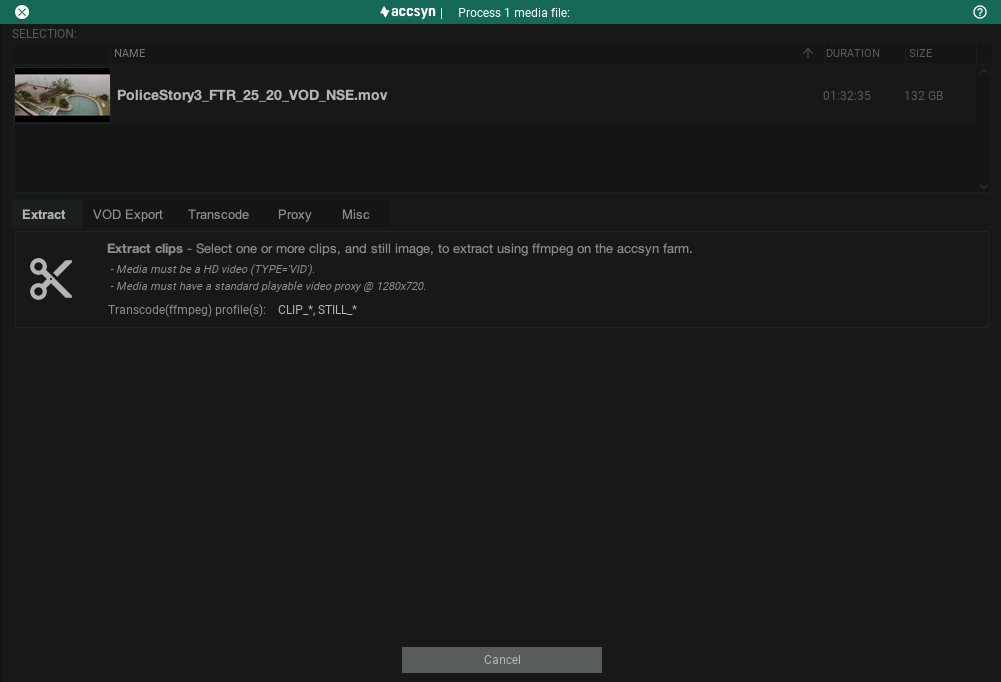
Selected media appears at the top; tabs below list actions (Cancel aborts).
Extract
Extract subclips and stills from a single media file. Also available from the proxy player via extract clip / still controls.
See Clip and still image extraction.
VOD export
Package media for VOD platform ingest.
See Export.
Transcode
Standard transcode produces new media that is ingested back onto the title.
Lowres transcode
Low-resolution proxy for previews and e.g. subtitling:
- Codec: H.264 (MP4)
- Bitrate: 2 Mbps
- Resolution: 1024×576
A lowres asset is logged with status TRANSCODING, then ONLINE when finished.
VOD transcode
Master → VOD media for SVOD/TVOD and further streaming proxies:
- Codec: H.264 (MP4)
- Bitrate: 25 Mbps
- Resolution: native
A VOD asset is logged TRANSCODING → ONLINE.
Proxy
Create or recreate proxies used elsewhere in the platform.
Streamable proxy
HLS HD proxy of VOD media for web streaming:
- Codec: HLS
- High: 1080 @ 12 Mbps
- Medium: 1080 @ 6 Mbps
- Low: 720 @ 2.8 Mbps
- Mobile: 480 @ 800 kbps
- Audio: stereo (2.0)
Creates an hddef proxy (TRANSCODING → ONLINE). Video type only.
Video proxy
Created by default on video ingest; use this to recreate:
- Codec: MP4
- Standard: 720 @ 2.8 Mbps
- Audio: stereo (2.0)
Creates an hd720 proxy. Video type only.
Image proxy
Created by default on image ingest; use this to recreate:
- Codec: JPG
- Standard: max 320 px on the long side, aspect preserved
Creates an lr proxy. Image type only.
Misc
Probe
Re-run ffprobe to repair or refresh technical metadata.
Update
Re-probe metadata, verify the file on disk, and re-sync proxies.
Troubleshooting
- Cannot transcode VOD — “not a master” — Select video with Category = MAS. Edit media tags if needed.
- Transcode never finishes — Check JOBS at the bottom of the app for progress. Cloud farms run continuously; contact support if a job appears stuck.
Questions you cannot resolve: chat or email support.
Next: Web stream to recipients.