Access shared folders
This guide is for end users who have been granted download and/or upload access to an accsyn shared folder or collection, and who are using the Desktop App for the first time.
You typically get access to a specific project subfolder on production storage — not the whole disk. Downloads and uploads run over the secure, accelerated ASC protocol.
Important: If you received a delivery, use the link in the delivery email and follow Receive a delivery. The Desktop App here is for permanent (or long-lived) shared folders and collections on accsyn storage.
Email notification
When someone grants you access to a folder in an accsyn workspace, you should receive an email:
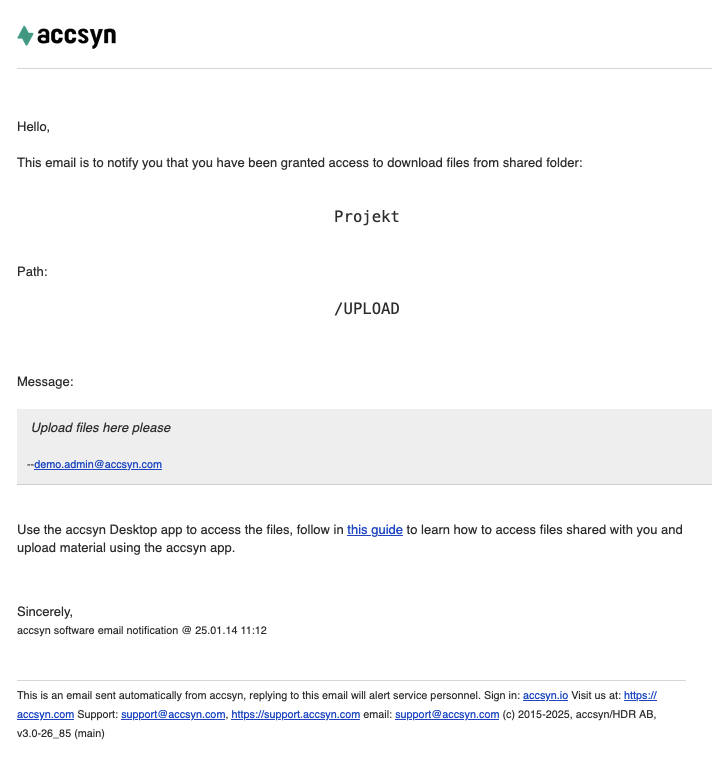
Example of a file-sharing email notification.
If this is your first time on the platform, you also receive an invitation explaining how to activate your accsyn account.
Note: If you cannot find these emails, check spam. Search for sender noreply@accsyn.com.
If you received no email, sign up at https://accsyn.com/signup with the same address the share was sent to. After sign-in you are taken to Shared with me, with instructions to continue.
Installing the accsyn Desktop App
Follow Install Desktop App.
Downloading files
- Launch the Desktop App.
- Sign in with the email address the share was sent to. You should see notifications for accessible items:
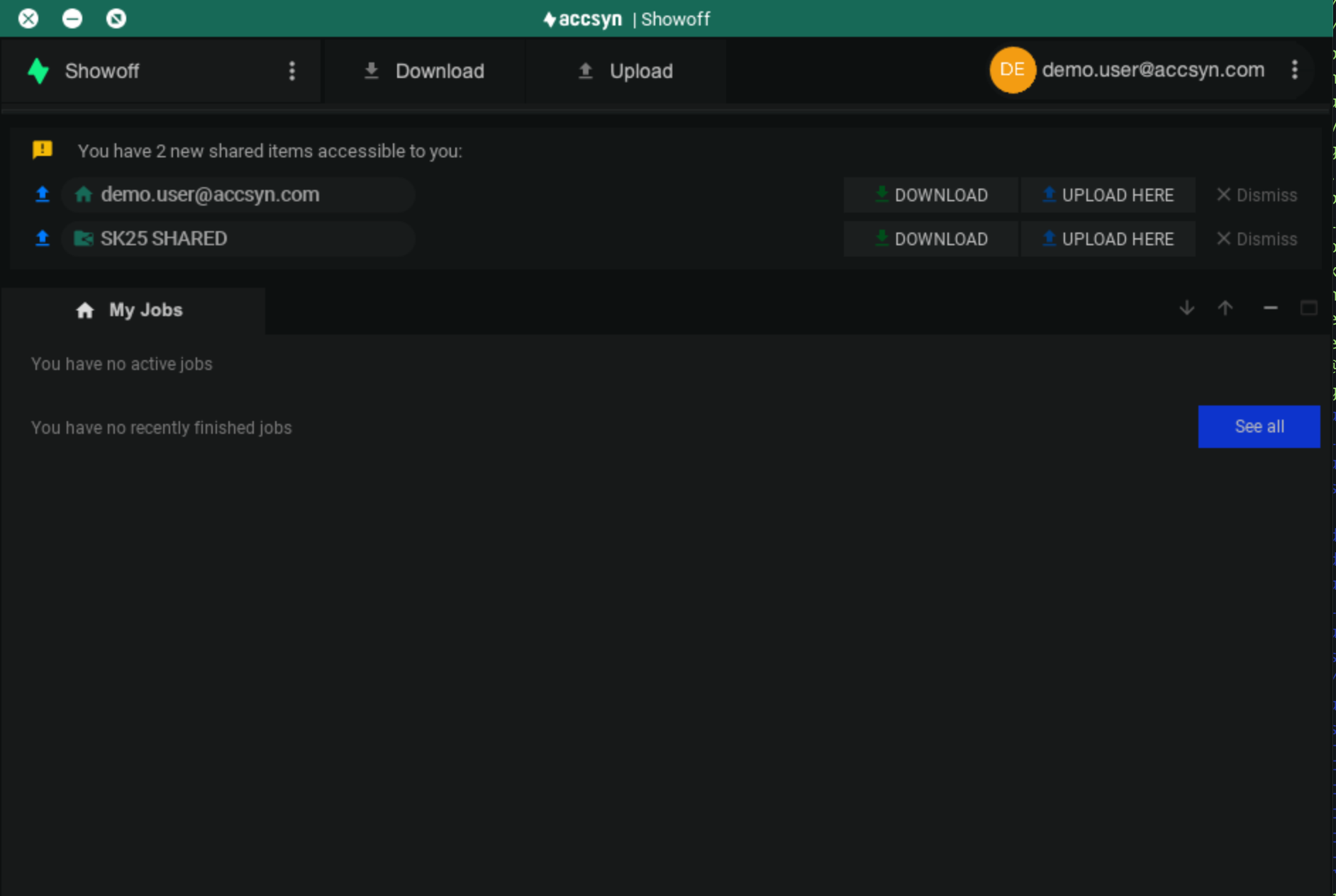
Example: Desktop App with two newly accessible shared folders.
- Click the green Download button.
Note: If you dismissed notifications, open Download in the top area to launch the download tool.
- Select which files and folders to download and the local destination:
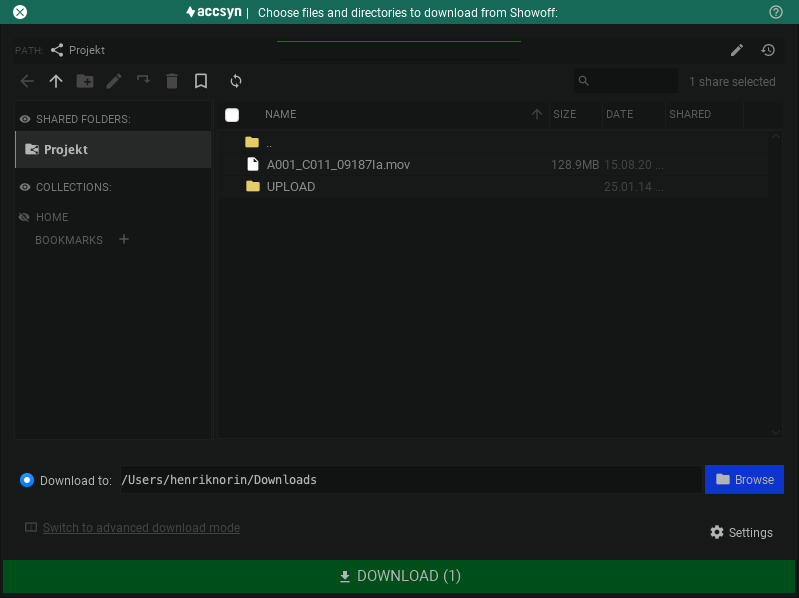
Example: accsyn download dialog.
- Click Download to start the transfer (ASC via the Desktop App).
Monitor progress in My jobs at the bottom of the app — ETR, and clues if the disk is full or permissions/network fail.
Upload files
Launch the app, sign in, and click Upload:
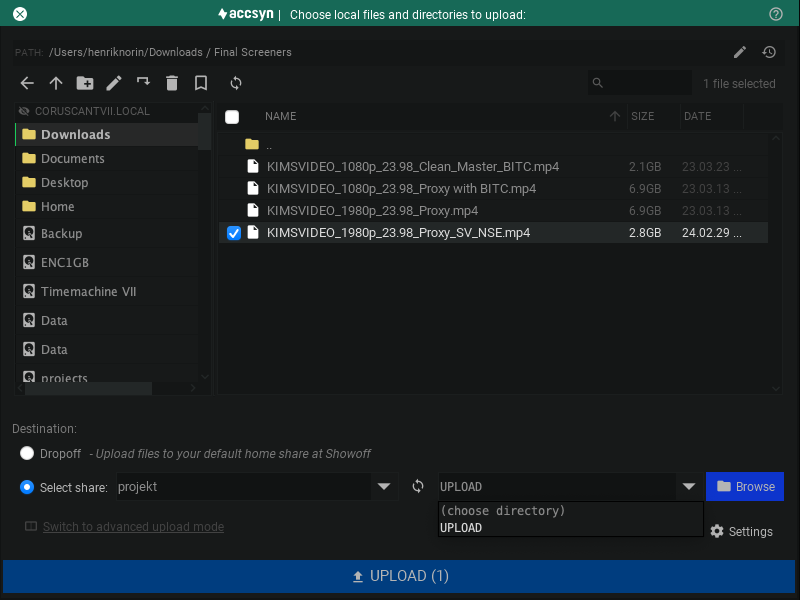
Example: upload tool.
Choose the file(s) and/or folder(s), set Destination to the shared folder, then Upload.
Advanced mode — Transfer
If you are used to FTP clients, use the Transfer view:
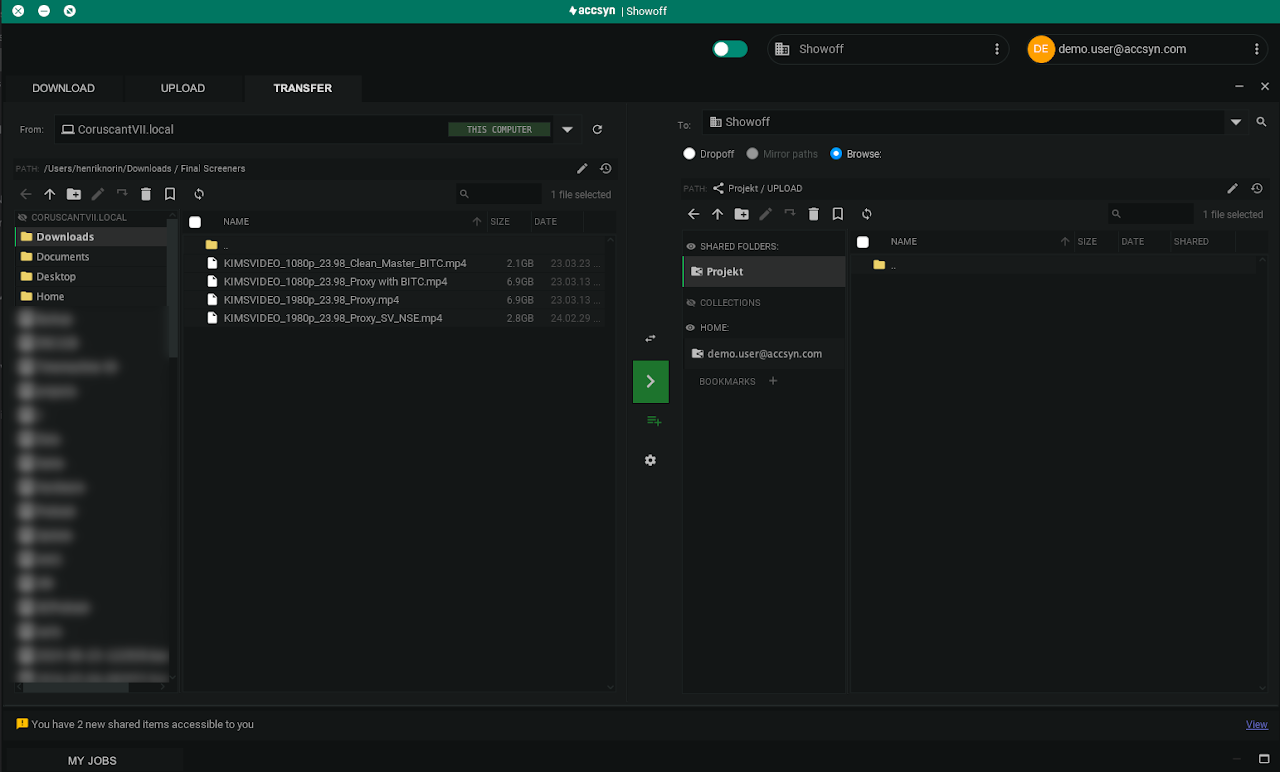
Source on the left, destination on the right. Click the green arrow in the middle to start the transfer.
Manage app
Installation location
Default locations for standard users (no admin rights):
- Windows —
C:\Users\<user account>\AppData\Local\Programs\Accsyn - Mac — chosen by user; recommended:
/Users/<user account>/Applications - Linux — chosen by user; recommended:
/home/<user account>/.local
If installed as administrator / with elevated privileges:
- Windows —
C:\Program Files\Accsyn - Mac — recommended:
/Applications - Linux — recommended:
/usr/local/accsyn
Data files location
- Windows —
C:\Users\<user account>\AppData\Roaming\accsyn\data(under%APPDATA%) - Mac —
~/Library/Application Support/com.accsyn - Linux —
/home/<user account>/.accsyn/data
Elevated installs:
- Windows —
C:\ProgramData\accsyn\data - Mac —
/Library/Application Support/com.accsyn - Linux —
/var/lib/accsyn
Hint: back up and migrate this folder when moving machines to keep login and client credentials.
Log files location
- Windows —
C:\Users\<user account>\AppData\Roaming\accsyn\log - Mac —
~/Library/Logs/accsyn - Linux —
/home/<user account>/.accsyn/log
Elevated installs:
- Windows —
C:\ProgramData\accsyn\log - Mac —
/var/log/accsyn - Linux —
/var/log/accsyn
Hint: ZIP this folder and attach it when opening a support ticket for stability issues.
Uninstall app
As a standard user:
- Windows — run
C:\Users\<user account>\AppData\Local\Accsyn\uninstall.exe - Mac — move the
.appbundle to Trash - Linux — remove the application folder
Elevated installs:
- Windows — run
C:\Program Files\Accsyn\uninstall.exe - Mac — typically remove from
/Applications - Linux — typically remove from
/usr/local
Note: The uninstaller does not remove data and log files; delete those manually if needed.
Troubleshooting
I am not allowed to install apps on my computer
Shared folders require the Desktop App. Ask IT to whitelist it, or use another machine (for example a personal laptop), then move files via USB if needed.
Download turns red and fails
- Check free disk space on the destination drive.
- Whitelist the executable and allow outbound TCP from port 45190 upwards (ASC).
- Confirm the app can write to the download folder (or read files you are uploading).
Can I download from several machines?
Yes. Access lasts until revoked. You may install the app on as many machines as you need.
Is the transfer encrypted?
Yes. Accsyn uses AES encryption (AES-128 by default) and accelerates transfers with the proprietary ASC protocol — suited to large folders and many files.
The Desktop App freezes or crashes
Email support@accsyn.com with log files attached (see log locations above).
Further questions: chat or support@accsyn.com.
Related articles:
Collaboration — share folders with employees and external users.
Hosts — automated deliveries and locally mapped shares.
Python API — automate shares and ACLs.