Project administration
Projects define delivery themes — custom wallpaper, colour theme, logos and other graphical elements.
Theme layout editing and resource (logo/wallpaper) selection will be expanded in later releases. This page covers creating and managing projects by name, code and status.
Prerequisites:
- Logged on as an administrator to https://accsyn.io/admin/projects.
What is a project?
A project is a named branding package applied to deliveries (and related share experiences). It stores theme configuration in the project config (wallpapers, colours, logos and other graphical elements), typically referencing workspace Resources where applicable.
Projects are workspace-scoped: each workspace maintains its own list of projects.
Project status
- Enabled (default); The project can be selected for deliveries and themes.
- Disabled; The project is retained but should not be used for new branded deliveries until re-enabled.
Project list
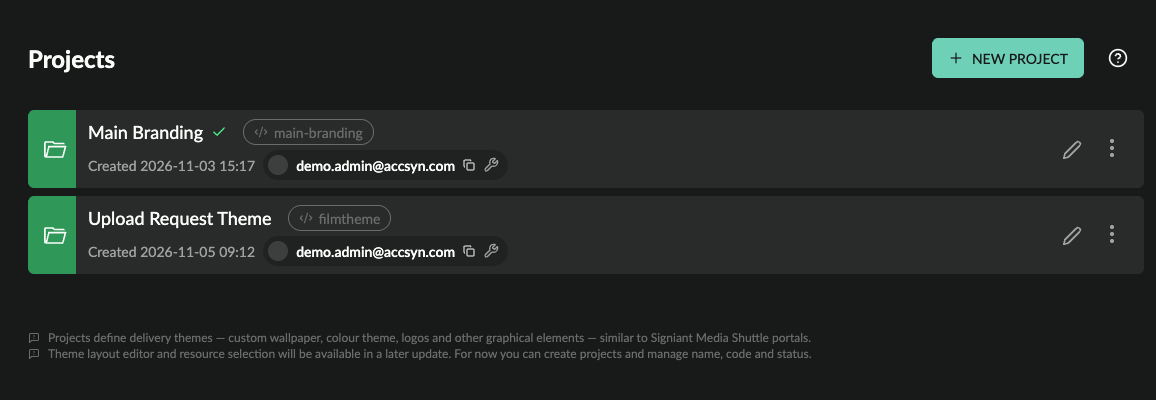
Example view of two projects
Toolbar:
- NEW PROJECT; Create a project (name required, code optional).
The project list shows:
- Name; The name of the project.
- Default; Green check icon if this is the workspace default project.
- API code; The unique project API code.
- Status; enabled or disabled.
- Created; When the project was created.
- Creator; Who created the project.
- Context menu (⋯):
- Enable / Disable
- Edit
- Delete (with confirmation)
Create a new project
To create a new project, click NEW PROJECT in the upper right corner.
- Name (required); Display name for the project.
- Code (optional); Unique API identifier within the workspace. Letters
a-zA-Z0-9_.-only, maximum length 32. Leave empty to auto-generate from the name.
When created, status defaults to enabled.
Configuring the theme
- Background; Choose the resource to use for background image/wallpaper/canvas behind the delivery/share box.
- Show workspace name/logo in delivery/share title; When enabled, the workspace badge (logo/name) is shown in the title area of share, download, upload and stream pages.
- Show footer on delivery pages; When enabled, the accsyn footer is shown at the bottom of download, upload and stream pages using this project theme.
- Make default for:; Choose to make it the default project for a given delivery type or share.
- Info messages:; Show additional info messages at the bottom of delivery and share boxes.
Edit a project
Open a project from the list or choose Edit from the context menu.
You can change:
- Name
- Code
- Status (enabled / disabled)
Toolbar shortcuts also allow Enable / Disable without opening the form fields.
Delete a project
Choose Delete from the project context menu and confirm.
NOTES:
- This cannot be undone.
- Unlink or stop using the project on active deliveries before deleting if your workflow depends on that branding.
Related resources
Upload logos, wallpapers and other branding assets used by projects and workspace settings (https://accsyn.io/admin/resources).
Workspace-level branding defaults.
External reference for portal-style delivery branding concepts.